
Clustering Visualizer
Visualize K-means clustering algorithm grouping data points into clusters based on similarity.
Visualize K-means clustering algorithm grouping data points into clusters based on similarity.
The Clustering Visualizer is a dynamic, web-based educational tool developed by Toolota to demystify one of machine learning’s fundamental algorithms: K-means clustering. Instead of presenting complex mathematical formulas or static diagrams, this tool brings the algorithm to life on an interactive canvas. It allows you to see, in real-time, how raw, unlabeled data points autonomously organize themselves into distinct groups, or “clusters,” based on their similarity and proximity. By transforming abstract computational steps into a visual and interactive experience, the Clustering Visualizer serves as a bridge between theoretical concept and practical understanding, making it an invaluable resource for anyone stepping into the world of data science and unsupervised learning.
Clustering is a core unsupervised machine learning technique used for data exploration, customer segmentation, image compression, and more. However, grasping how algorithms like K-means make decisions can be challenging from textbooks alone. An interactive Clustering Visualizer solves this by providing immediate visual feedback. You don’t just read about “centroid recalculation”; you watch a colored marker physically slide across the screen as it recalculates its position. You don’t just memorize the “assignment step”; you see lines drawn from dozens of points to their nearest centroid, with colors shifting as assignments change.
This section details the exact workflow of the tool, based on its actual interface and functionality.
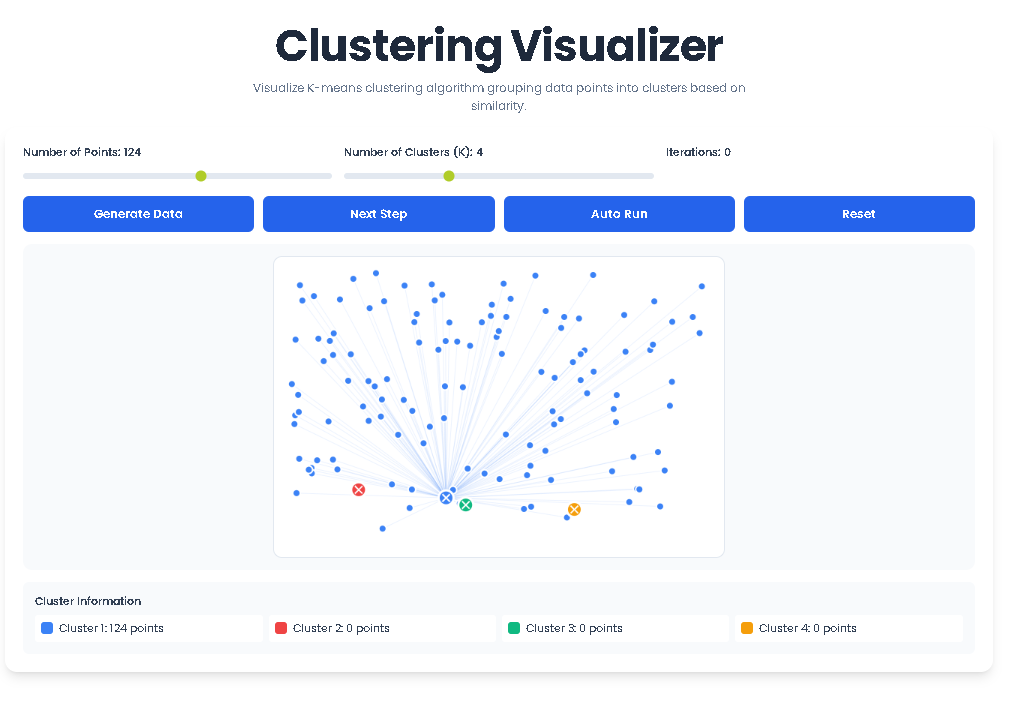
Upon loading the Clustering Visualizer, you are presented with a blank canvas bordered by control panels. Your first action is to generate data. Click the blue “Generate Data” button. This action creates a set of random data points (initially 50) scattered across the canvas. Each point represents a single data instance in a two-dimensional space.
Before running the algorithm, configure its parameters using the sliders:
Number of Points Slider: Adjust this to increase or decrease the dataset size, from a minimum of 20 to a maximum of 200 points. Observe how more points create a denser, more complex landscape for the algorithm to analyze.
Number of Clusters (K) Slider: This is the critical ‘K’ in K-means. Set how many clusters you believe exist in the data, from 2 to 8. The tool will initialize this many centroids (large, X-marked circles) at random positions on the canvas.
With data and parameters set, you can execute the algorithm in two ways:
Next Step (Manual Control): Click the green “Next Step” button to proceed through the algorithm one iteration at a time. Watch closely as two things happen simultaneously:
Assignment: Thin, semi-transparent lines briefly flash from each point to its nearest centroid. All points then change color to match their assigned centroid’s color.
Update: Each centroid calculates the mean position of all points assigned to it and physically moves to that new location. The iteration counter increments.
Auto Run (Hands-Free Observation): Click the purple “Auto Run” button to let the algorithm proceed automatically (approximately 2 steps per second). This is ideal for observing the convergence process as centroids shift and assignments stabilize over multiple iterations. Click “Stop” to pause.
As the algorithm runs, monitor the “Cluster Information” legend below the canvas. It displays the count of points belonging to each color-coded cluster in real-time. The goal is to reach a state where centroids stop moving significantly, and point assignments remain constant. You can use the gray “Reset” button at any time to clear the canvas, change your parameters (like the value of K), and re-run the experiment to see how different choices lead to different clustering outcomes.
Dynamic Parameter Control: Instantly modify the dataset size (20-200 points) and cluster count (K=2-8) with intuitive sliders, enabling rapid hypothesis testing.
Dual Execution Mode: Choose between precise, step-by-step control for detailed study or automatic execution to observe the full convergence trend.
Real-Time Visual Feedback: Every algorithmic step—point assignment, line drawing, centroid movement, and recoloring—is animated directly on the canvas.
Comprehensive Legend: A live-updating dashboard shows the point count for each cluster, providing immediate quantitative insight alongside the qualitative visual.
Iteration Tracking: A dedicated counter logs each completed cycle of assignment and update, allowing you to measure the algorithm’s speed to convergence.
Professional Color Coding: Eight distinct, high-contrast colors ensure clear differentiation between clusters, even at the maximum of eight groups.
Fully Responsive Design: The visualization canvas adapts to different screen sizes, ensuring a consistent learning experience on desktops, tablets, and laptops.
The Clustering Visualizer perfectly illustrates the two-phase iterative process of the K-means algorithm:
The Assignment Phase (Colored Grouping): In this step, the tool calculates the Euclidean distance between every data point and each centroid. Visually, you see each point get “pulled” toward and colored by the centroid it is closest to. This creates distinct, color-coded groups. The faint connecting lines emphasize this distance-based relationship, a core principle of the algorithm.
The Update Phase (Centroid Movement): Once all points are assigned, each centroid must justify its position. It does this by finding the geometric center (mean) of all points currently in its cluster. In the visualization, you witness the centroid icon smoothly relocating to this new center of mass. This movement is the algorithm learning and optimizing the cluster definition.
By cycling through these phases, the Clustering Visualizer shows how K-means seeks to minimize the total within-cluster variance—essentially making each cluster as tight and coherent as possible. You learn why random initialization matters (try resetting multiple times) and how the final result can sometimes be a local, not global, optimum.
This tool is meticulously designed for:
Data Science & ML Students: Anyone enrolled in machine learning courses who needs a concrete understanding of unsupervised learning fundamentals.
Educators and Instructors: Teachers who want a powerful, in-class demonstration tool to explain K-means clustering without relying on static slides.
Career Transitioners: Professionals moving into data roles who need to build an intuitive, non-mathematical foundation in key algorithms.
Curious Beginners: Hobbyists or enthusiasts interested in how machines find patterns in data without explicit instructions.
Researchers: Individuals who need a simple way to prototype or explain the clustering concept before applying it to their complex datasets.
The main purpose of the Clustering Visualizer is to provide an interactive, graphical representation of how the K-means clustering algorithm works. It allows users to see the step-by-step process of data points grouping around moving centroids, making an abstract machine learning concept visually tangible and easier to understand.
The Clustering Visualizer encourages experimentation. Start by generating data and trying different K values (2 through 8) using the slider. Observe the results: too few clusters will group dissimilar points together, while too many will split natural groups apart. The tool helps you develop an intuitive feel for this crucial parameter by letting you visually assess the “tightness” and logical grouping of the resulting clusters.
Currently, Toolota‘s Clustering Visualizer is configured to work with randomly generated two-dimensional data points within the tool itself. This design ensures a focused learning experience on the algorithm’s mechanics without the complexity of data importing and preprocessing. It is intended as a conceptual simulator rather than a data analysis platform.
If clusters appear suboptimal (e.g., overlapping or illogical), it’s a learning opportunity. First, click “Reset” and run the algorithm again—random centroid initialization can lead to different results. Second, try adjusting the ‘K’ value. Third, use the “Auto Run” to see if more iterations improve the outcome. This experimentation is key to understanding the algorithm’s sensitivity and behavior, which is a core lesson the Clustering Visualizer is designed to teach.
Toolota is your all-in-one online tools platform. Fast, simple, and free utilities designed to make everyday digital tasks easier and smarter.