Generate MD5, SHA-1, SHA-224, SHA-256, SHA-384, and SHA-512 hashes directly in your browser
A Checksum Generator is an essential digital tool that creates a unique, fixed-size string of characters—known as a hash or checksum—from any file or piece of data. Think of it as a digital fingerprint. The Checksum Generator from Toolota performs this critical function entirely within your web browser, ensuring your files never leave your computer for processing. This guarantees not only speed but also the highest level of privacy and security for your sensitive data.
Whether you’re a developer verifying a software download, a system administrator auditing file integrity, or a regular user ensuring a transferred file isn’t corrupted, this tool provides a fast, reliable, and free solution. By using a Checksum Generator, you can compare the hash of an original file with a downloaded copy; if the hashes match exactly, you can be confident the file is identical and intact.
This versatile Checksum Generator is designed for a wide range of users:
Developers & Programmers: To verify the integrity of source code packages, libraries, and released software binaries.
System Administrators & IT Professionals: For auditing system files, ensuring backup integrity, and validating secure transfers.
Cybersecurity Enthusiasts & Students: To learn about cryptographic hashing, conduct security audits, and verify file authenticity.
Researchers & Academics: To ensure data sets and research files remain unaltered throughout a project.
General Users: Anyone who downloads large files (like ISO images, game mods, or video archives) and wants to confirm they downloaded correctly without corruption.
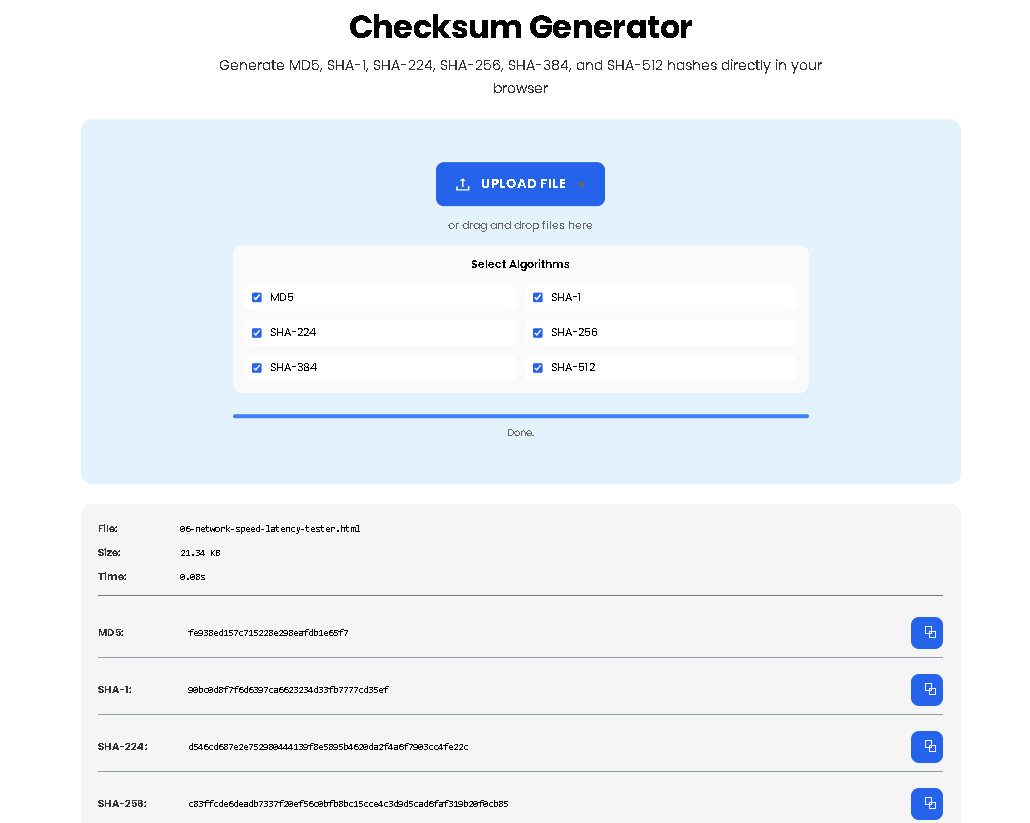
Following the actual interface of the tool, here is the precise workflow:
Step 1: Upload Your File
Click the prominent “UPLOAD FILE” button or simply drag and drop any file from your computer directly onto the dashed upload area. The area will highlight to confirm. Supported files include documents, images, archives, executables—essentially any file type.
Step 2: Select Your Algorithms
In the “Select Algorithms” grid, choose which hash types you want to compute. By default, all six (MD5, SHA-1, SHA-224, SHA-256, SHA-384, SHA-512) are selected. You can uncheck any you don’t need. The Checksum Generator will only compute the ones you choose, saving processing time.
Step 3: Initiate Processing
Once a file is selected, processing begins automatically. You will see a progress bar advance and status messages (“Reading file…”, “Computing SHA-256…”) as the tool works.
Step 4: Review the Results
Upon completion, the results panel expands. You will see:
File Metadata: The original filename and its size.
Processing Time: How long the computation took.
Hash Results: A neatly organized list of your selected algorithms and their corresponding long hexadecimal hash strings (e.g., e3b0c44298fc1c149afbf4c8996fb92427ae41e4649b934ca495991b7852b855 for an empty file with SHA-256).
Step 5: Copy or Verify Hashes
Click the copy button (⧉) next to any hash to instantly copy it to your clipboard for pasting into documentation, terminal, or verification systems.
The Checksum Generator supports industry-standard algorithms, each with specific characteristics:
MD5: Produces a 128-bit hash. Fast and commonly used for basic file integrity checks, but considered cryptographically broken for security purposes.
SHA-1: Creates a 160-bit hash. More secure than MD5, but also now deprecated for certificates and sensitive security applications due to vulnerabilities.
SHA-224 / SHA-256 / SHA-384 / SHA-512: Part of the SHA-2 family. These are modern, cryptographically secure algorithms. SHA-256 is the current gold standard for verifying software downloads and ensuring file integrity securely. The numbers refer to the bit-length of the hash output.
For most users today, SHA-256 provides the ideal balance of security and widespread support.
Output Accuracy: The generated hash is mathematically determined by your input file. The Checksum Generator is a deterministic tool; the same input will always produce the same output.
File Limitations: Processing time depends on your device’s power and file size. Extremely large files (multi-gigabyte) may take longer but will still process locally.
Legal Use: This tool is intended for legitimate integrity verification, development, and educational purposes. Do not use it to attempt to reverse-engineer hashes for malicious purposes.
No Warranty: While the tool uses robust algorithms, it is provided “as-is” for convenience as part of the Toolota suite of utilities.
The Checksum Generator is a client-side application. All file reading and hash calculations are performed directly within your browser using JavaScript. The file data is never transmitted over the internet to Toolota or any other server, ensuring complete privacy.
Absolutely. The Checksum Generator features a responsive design that works perfectly on mobile browsers. You can upload files from your phone’s storage and generate hashes on the go with the same ease as on a desktop.
Different systems and protocols may require specific hash types. Generating multiple hashes with the Checksum Generator at once allows you to have MD5 for one legacy system, SHA-256 for a modern verification, and SHA-512 for maximum security, all from a single operation, saving you time.
If the Checksum Generator reports a mismatch during verification, it means the file you processed is different from the file that produced the expected hash. This typically indicates a corrupted download. You should re-download the file and run it through the Checksum Generator again before attempting verification.
Toolota is your all-in-one online tools platform. Fast, simple, and free utilities designed to make everyday digital tasks easier and smarter.
