
Project Timeline Creator
Create and visualize your project timeline with Gantt-style bars.
Create and visualize your project timeline with Gantt-style bars.
No tasks yet. Add a task to see the timeline.
A Project Timeline is a visual representation of your project schedule that displays all tasks, their start and end dates, and task ownership in an easy-to-understand format. This free, browser-based tool by Toolota transforms your project data into professional Gantt-style visualizations instantly—without requiring downloads, subscriptions, or complicated setup processes.
Whether you’re managing a software development sprint, coordinating a marketing campaign, or organizing a construction project, visualizing your schedule provides immediate clarity on task sequences, dependencies, and team responsibilities. This approach simplifies project planning by allowing teams to see complex schedules at a glance, ensuring everyone understands deadlines and ownership.
Before diving into how the tool works, let’s understand why visual timelines transform project management.
The human brain processes visuals 60,000 times faster than text. When you look at a list of tasks with dates, your brain works hard to calculate durations, spot overlaps, and understand the big picture. But when you see those same tasks as colored bars on a timeline, comprehension happens instantly.
A well-designed Project Timeline helps teams spot scheduling conflicts immediately—when two tasks overlap but shouldn’t. It also helps identify resource allocation issues, like one person assigned to multiple concurrent tasks.
Communicate progress visually during team meetings and set realistic expectations with stakeholders. Celebrate milestones as bars fill up and watch your project come to life.
The Project Timeline tool by Toolota brings these benefits to everyone—from students organizing thesis work to agencies managing client deliverables.
The Project Timeline Creator uses an intuitive three-step workflow that takes less than a minute to master. Here’s exactly how to create your first professional timeline:
Start by clicking the “Task Name” input field on the left panel. Type a clear, descriptive name for your task. Examples include “Design Homepage,” “Client Review Phase,” “Development Sprint,” or “Testing & QA.” The task name appears as the label on your timeline, so use terminology your team understands immediately.
The system accepts any text input, allowing you to be as specific as needed. Longer names auto-fit within the layout, though concise names (under 20 characters) work best for visual clarity.
Click the “Start Date” field to open the date picker. Select the date when your task begins. This is the left anchor point for your task bar on the visualization. The system automatically calculates the relative position of your bars based on when your earliest task starts, so all dates are relative to each other.
You can use the calendar interface or type the date directly if your browser supports it. The format follows your system locale settings, ensuring flexibility across different regions.
Click the “End Date” field and select when your task concludes. The Creator calculates the duration automatically by measuring the days between your start and end dates. The task bar width expands proportionally to the duration—longer projects display wider bars, while single-day tasks show minimum-width bars for visibility.
The system validates that your end date comes after your start date. If you accidentally enter dates in the wrong order, the tool alerts you with a clear error message: “Start date must be before end date.”
Enter the name of the person responsible for this task in the “Owner” field. This could be a team member’s name, initials, or a role title like “Design Team” or “John Smith.” The owner name displays within the colored bar on your visualization, making it instantly visible who’s responsible for each task.
This field is essential for accountability and communication. When your team views the timeline, they immediately see who owns each task, eliminating confusion about responsibilities.
Click the “Add Task” button to submit your task. The Creator instantly processes your input and renders a color-coded Gantt bar in the right panel. Your timeline updates in real-time without page refresh, allowing you to see exactly how your new task fits within the overall schedule.
Repeat Steps 1–5 to add additional tasks. As you add more tasks, the visualization expands automatically, showing all tasks with their relative timing, durations, and owners in a clean, visual format.
Choosing a dedicated online tool like this Bar Chart Generator offers distinct advantages over manual or software-heavy methods:
Unmatched Speed and Efficiency: Go from a text list to a finished visual in under 30 seconds. This efficiency is invaluable when time is limited.
Guaranteed Accuracy: The automated scaling and plotting remove human error from calculating proportions and drawing bars to scale.
Zero Learning Curve: The two-field input system is intuitive for anyone, eliminating the need for tutorials or training required by full-featured software like Excel or Illustrator.
Accessibility and Convenience: Being web-based, the tool is accessible from any device with an internet connection—no installation or specific operating system required.
Clean, Consistent Output: Every chart follows the same polished design rules, ensuring a professional look that enhances your documents or presentations without extra design work.
It’s important to have realistic expectations about what this Bar Chart Generator provides:
Output Quality: The chart is rendered as a bitmap on an HTML Canvas. While perfectly clear on screen, the resolution is fixed (900×500 pixels). For very high-resolution prints, it may appear pixelated if enlarged significantly.
Input Dependency: The accuracy and usefulness of the chart are entirely dependent on the accuracy of the data you input. The tool visualizes what you provide.
Chart Type Limitation: This is specifically a Bar Chart Generator. It does not create pie charts, line graphs, scatter plots, or other chart types.
Customization Limits: The color scheme, font, and basic layout are pre-set for consistency and ease of use. Advanced customization (like custom colors or bar styles) is not part of this tool’s scope.
Saving Your Chart: While the tool itself doesn’t have a “download” button, you can save the generated chart. On most computers, right-clicking directly on the canvas will bring up a context menu with an option like “Save image as…” to save the chart as a PNG file to your device.
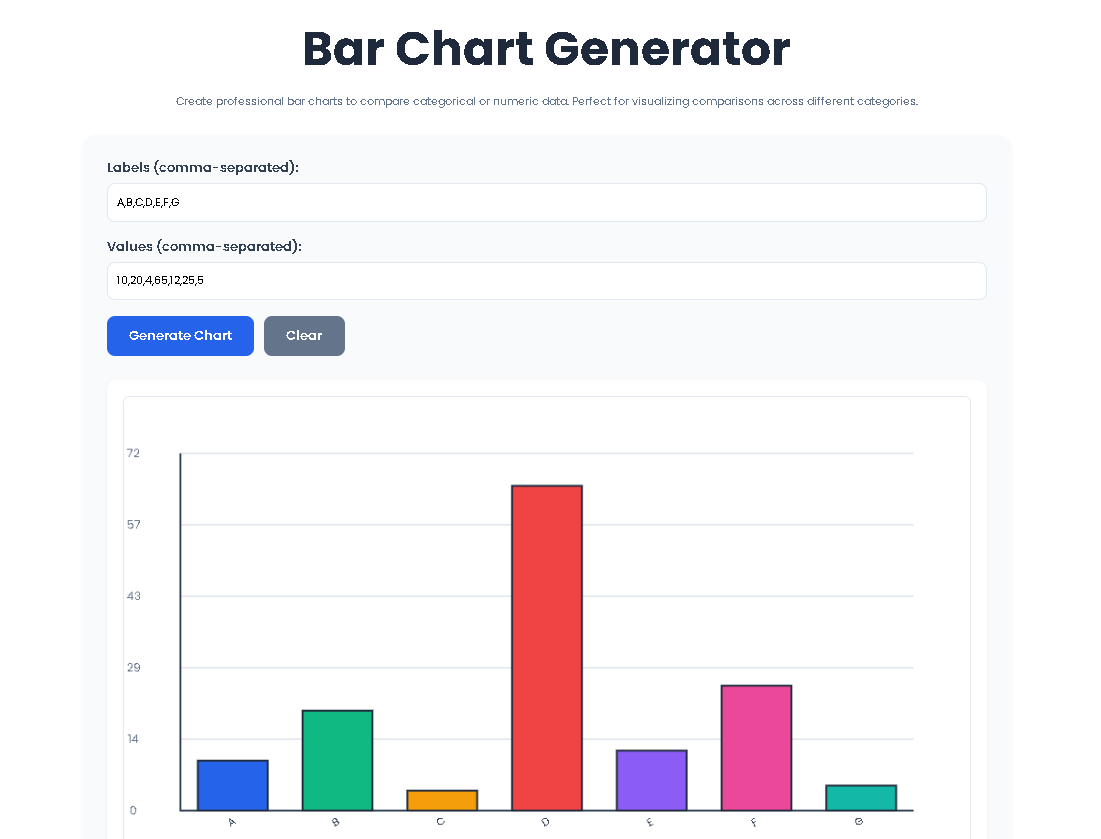
This generator is versatile. Here are some concrete scenarios where it excels:
Academic Reporting: Visualize survey results, experimental data, or historical comparisons for papers and presentations.
Business Intelligence Snapshots: Quickly chart weekly sales by region, monthly website visitors by source, or quarterly expenses by department.
Content Enhancement: Create simple charts to illustrate points in blog posts (e.g., “Comparison of Social Media Engagement Rates” or “Top 5 Recommended Tools”).
Personal Projects: Track and visualize personal goals, investment portfolio allocations, or fitness progress over time.
Brainstorming & Planning: Use the visual output to spot trends, outliers, or patterns during early-stage data analysis or team meetings.
The Bar Chart Generator relies on the order you provide. It processes your labels and values as sequential lists. The first label is paired with the first value, the second label with the second value, and so on. This is why it’s crucial to enter your data in corresponding order. The tool includes a validation check that alerts you if the number of items in each list doesn’t match, preventing a misaligned chart.
No, the current logic of this specific Bar Chart Generator is designed for positive values. The chart’s Y-axis starts at zero at the bottom, and bars are drawn upward from the baseline. Inputting a negative number may result in a bar that doesn’t render correctly or extends outside the intended chart area, as the scaling function isn’t built to handle values below zero.
There is no hard-coded limit in the validation, but practical limits exist due to the fixed canvas width (900 pixels). The tool calculates bar width and spacing dynamically. If you input a very large number of labels (e.g., 50), the individual bars will become very thin and likely unreadable, and the rotated labels may overlap excessively. For clear, effective charts, it’s recommended to use the generator for datasets with a manageable number of categories, typically under 15.
First, look for a red error message above the chart area. The Bar Chart Generator provides specific feedback. Common issues include: leaving one of the input fields completely blank, using a different number of items in the “Labels” and “Values” fields, or including non-numeric characters (like letters or symbols) in the “Values” field. Ensure your values are numbers separated only by commas.
Toolota is your all-in-one online tools platform. Fast, simple, and free utilities designed to make everyday digital tasks easier and smarter.