
Mobile View Simulator
Test how your website appears on different device screen sizes.
NEW Apple Phones
Android Phones
Tablets
Specials
iPhone 13 PRO
Width: 390px × Height: 844px
Enter a URL at the top
and click "Load Site"
Test how your website appears on different device screen sizes.
Width: 390px × Height: 844px
Enter a URL at the top
and click "Load Site"
A Mobile View Simulator is a web-based testing tool that allows developers, designers, and content creators to preview how a website or web application renders on various mobile devices. Instead of manually resizing your browser window or purchasing dozens of physical phones, you can simply enter a URL and see it displayed within the exact dimensions of specific models.
The tool we are discussing goes beyond basic functionality. It features a comprehensive library of over 50 device frames, meticulously categorized into Apple Phones, Android Phones, Tablets, and Specials (like smartwatches, foldables, and even kiosks). By using this Mobile View Simulator, you are effectively putting your website through a rigorous visual quality assurance test, catching layout shifts, font issues, and broken elements before they affect your real-world users.
The primary reason to use a Mobile View Simulator is to guarantee a consistent user experience. With the endless array of screen resolutions and aspect ratios on the market, what looks good on your desktop monitor might be a disaster on a mobile screen. Here are the core problems this tool solves:
Responsive Design Verification: You can confirm that your CSS media queries are firing correctly at the right breakpoints.
User Experience (UX) Optimization: By seeing your site through the eyes of a user on an iPhone SE or a Galaxy Z Flip, you can ensure that buttons are tappable and text is readable without zooming.
Debugging Layout Issues: It helps you identify specific elements that “break” or overflow on smaller screens, allowing for targeted fixes.
Client Demonstrations: If you’re a developer or designer, you can use this Mobile View Simulator to show clients exactly how their new site will appear on their own phones, building trust and reducing revision requests.
The beauty of this tool lies in its simplicity and accuracy. It mirrors a real-world testing scenario without any complex setup. Here is a step-by-step breakdown of how it functions, based on the actual interface:
Step 1: Enter Your Website URL
At the top of the tool, you’ll find a clean input field. Simply paste or type the full address of the website you wish to test (e.g., https://yoursite.com). The tool is smart enough to add the https:// prefix for you if you forget it.
Step 2: Load the Site
Click the prominent blue “Load Site” button. You can also simply hit the “Enter” key on your keyboard after typing the URL. This action triggers the tool to fetch the live website and prepare it for display.
Step 3: Select a Device
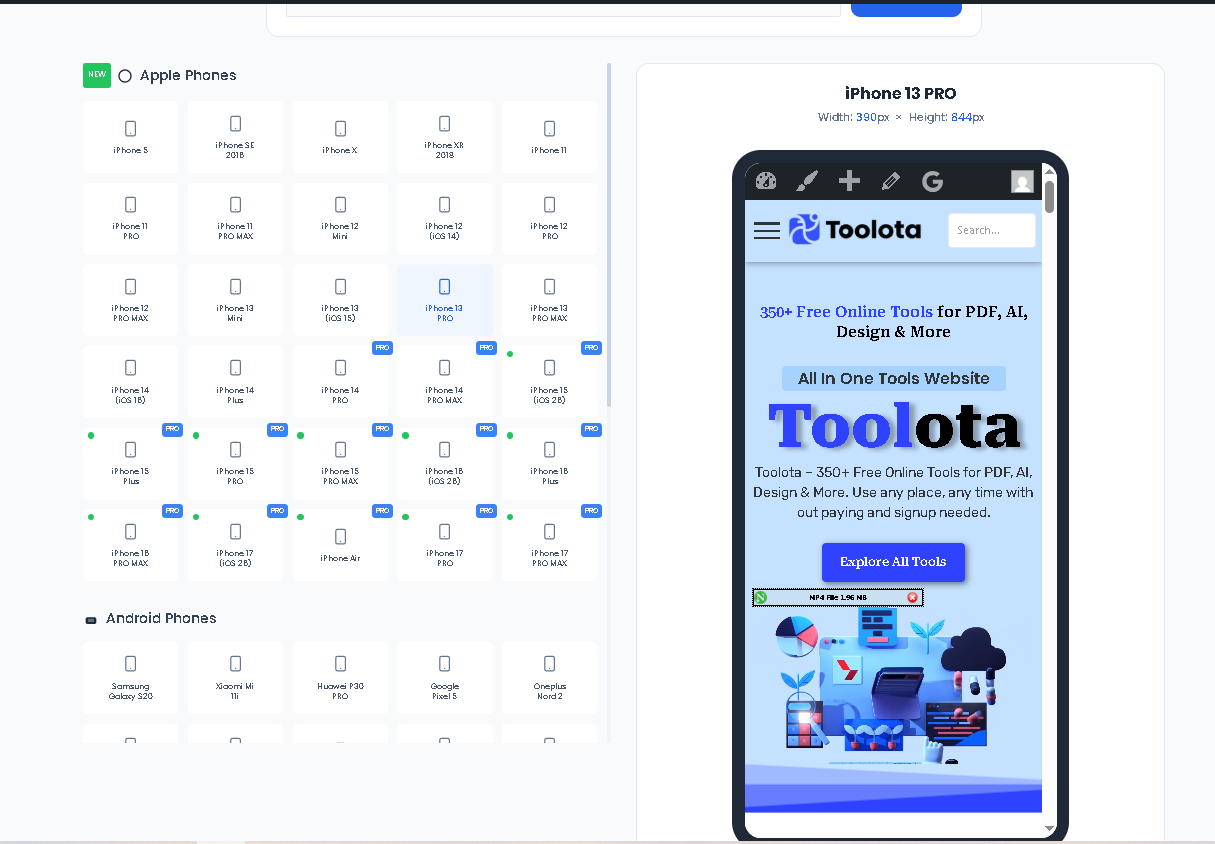
This is where the Mobile View Simulator truly shines. On the left side, you’ll see a scrollable list of device cards, grouped by category. Simply click on any device—be it an iPhone 15 Pro Max, a Samsung Galaxy S24 Ultra, or an Apple Watch—and the preview window on the right will instantly resize to match that device’s exact screen dimensions.
Step 4: Analyze the Preview
The right panel of the simulator features a realistic device frame surrounding a high-fidelity screen. Within this frame, your loaded website will render. You can scroll, click links, and interact with the page just as you would on a real phone. The top of this panel also displays the current device name and its precise pixel dimensions (width × height), giving you all the technical data you need.
Using a dedicated Mobile View Simulator offers a range of advantages that streamline your workflow and improve your final product.
Speed and Efficiency: Testing on physical devices is slow and requires you to own or maintain a library of hardware. This simulator gives you instant access to 50+ devices from a single browser tab.
Pinpoint Accuracy: Each device card is programmed with the exact width and height of the real model. This ensures your testing is based on real-world data, not just generic screen sizes.
Comprehensive Device Library: With categories for Apple, Android, Tablets, and Special devices (like the Zebra MC330 barcode scanner), you can test for niche audiences and industries.
Clean and Intuitive UI/UX: The interface is distraction-free. The left-side device selection and right-side preview panel make the workflow logical and fast, minimizing the learning curve.
Zero Cost, High Value: This Mobile View Simulator provides enterprise-level testing capabilities without any financial investment, making it accessible to freelancers, startups, and large agencies alike.
Immediate Visual Feedback: The instant resizing and reloading of the preview frame allows for rapid A/B testing of design changes in your mind’s eye.
While the Mobile View Simulator is a powerful and free tool, users should be aware of its intended function and limitations.
Output Depends on Input: The accuracy of the preview is directly tied to the website you input. If the target site is down, password-protected, or blocks iframe embedding, the simulator will not be able to display it correctly.
Visual Simulation Only: This tool simulates the visual dimensions of a device. It does not emulate the processing power, battery life, or network connectivity of the physical hardware.
No Malicious Use: You agree to use this tool only for lawful purposes, such as testing your own websites or pages you have permission to analyze. Using it to scrape content or test vulnerabilities on unauthorized sites is strictly prohibited.
General Usage Rules: The simulator is provided “as is” for general web development and design quality assurance. Toolota reserves the right to update the device library and tool functionality to maintain accuracy and performance.
The Mobile View Simulator is extremely accurate in terms of screen dimensions (width and height in pixels). It will show you exactly how your website’s layout responds to the viewport size of a specific device. However, it uses your computer’s browser engine, so performance metrics (like load time on a slow mobile processor) will not be identical to the physical device.
Yes, absolutely. Once your site is loaded inside the preview frame, it functions like a standard web browser. You can click buttons, fill out forms, navigate through menus, and scroll the page to fully test the user experience and interactivity on the simulated screen.
No installation is required. The Mobile View Simulator is a completely web-based HTML tool. As long as you have an internet connection and a modern web browser (like Chrome, Firefox, Safari, or Edge), you can access and use all its features instantly.
The current library is extensive, covering most major models. However, if you need a very specific or niche device, you can use the dimensions provided by the manufacturer. The Mobile View Simulator is built on flexible technology; you are essentially seeing a preview frame sized to specific pixels, so understanding the core dimensions is the key takeaway.
Toolota is your all-in-one online tools platform. Fast, simple, and free utilities designed to make everyday digital tasks easier and smarter.