Monitor your storage usage with real-time analysis. Enter your total and used storage to see detailed statistics.
The Storage Usage Tracker is a free, web-based analytical tool designed to give you immediate and crystal-clear insight into your device’s storage health. In a world where digital clutter accumulates silently, running out of space can sneak up on you, causing system slowdowns, failed saves, and frustration. This tool eliminates the guesswork. By simply inputting two numbers—your total storage capacity and how much you’ve used—you receive a comprehensive, visual report. It calculates your exact usage percentage, shows you how much precious free space remains, and provides a vital status alert (from “Excellent” to “Critical”) based on industry-standard thresholds. Think of it as a quick, on-demand diagnostic check for your hard drive, SSD, or phone storage, powered by Toolota‘s commitment to practical digital solutions.
For digital devices, a storage drive that’s over 85% full can lead to significantly reduced performance. The system has less room to create temporary files, swap data, and operate efficiently, which translates into slower app launches, longer file transfer times, and overall lag. Beyond speed, a completely full drive can prevent you from saving important work, downloading critical updates, or installing new applications. It can even cause system crashes or data corruption in extreme cases. Proactive monitoring with a Storage Usage Tracker is a fundamental practice of good digital hygiene, allowing you to clean up before these issues arise, ensuring your device runs smoothly and reliably.
This tool is built for simplicity. Follow these exact steps to get your personalized storage report.
Step 1: Locate Your Storage Information
First, you need to find the two required numbers on your device.
For Windows: Go to This PC or File Explorer. Right-click on your main drive (usually C:), and select Properties. You will see both “Capacity” (Total Storage) and “Used space.”
For macOS: Click the Apple menu > About This Mac > Storage. You’ll see a bar showing your total capacity and how much is used.
For Smartphones (iOS/Android): Go to Settings > General > iPhone Storage (iOS) or Settings > Storage (Android). The total and used figures are displayed at the top.
Step 2: Enter Data into the Tool
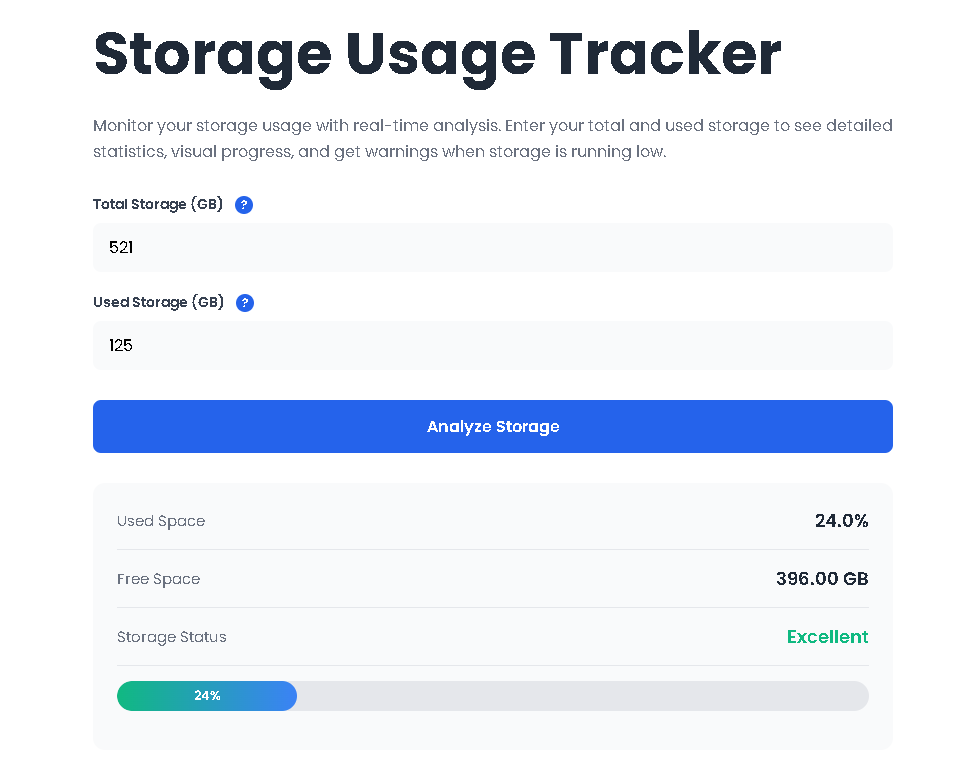
On the Storage Usage Tracker page, you will see two input fields:
“Total Storage (GB)”: Enter the full capacity of your drive here. For example, if your drive is listed as 512 GB, enter 512.
“Used Storage (GB)”: Enter the amount of storage currently in use. For example, if you’ve used 347.8 GB, enter 347.8.
Tip: Use the helpful tooltip icons (the “?” in a blue circle) next to each label for quick guidance on what each field means.
Step 3: Click “Analyze Storage”
Once both numbers are entered, click the blue “Analyze Storage” button. The tool will instantly validate your inputs. If you enter a used value larger than the total or a negative number, a clear error message will prompt you to correct it.
Step 4: Review Your Comprehensive Results
Immediately after clicking, the results panel will expand below, presenting your complete storage analysis.
Instant Visual Clarity: Gone are the days of deciphering complex system reports. Our tool presents your data with a dynamic, color-coded progress bar that gives you an understandable snapshot at a single glance.
Proactive Warning System: We don’t just show you numbers; we tell you what they mean. The integrated alert system provides clear warnings when your usage crosses 75% and critical alerts at 90%, giving you ample time to take action.
Pinpoint Accuracy: Get precise calculations for used storage percentage (to one decimal place) and free space (to two decimal places). This accuracy is essential for planning what files to delete or if a new storage upgrade is necessary.
Effortless & Accessible: There’s no software to download or install. The Storage Usage Tracker runs directly in your web browser and is designed with a clean, intuitive interface that anyone can use in under a minute.
Session Persistence: Your last entered values are automatically saved (using your browser’s local storage). When you return to the page, your data is pre-filled, making it easy to track changes over time after a cleanup session.
Completely Free & Secure: This is a client-side tool. Your storage data never leaves your browser or is sent to any server, ensuring complete privacy and security while you analyze your device.
Your results panel contains several key pieces of information. Here’s what each one means:
Used Space (XX%): This is the core metric—the percentage of your total storage that is currently occupied. This single figure is the primary determinant of your storage health.
Free Space (XX GB): This is the actual amount of storage, in gigabytes, that you have left for new files, apps, and system operations. This is crucial for planning; for instance, knowing if you have enough space to download a large 50 GB game.
Storage Status (Excellent/Good/Warning/Critical): This is your at-a-glance health indicator. It is directly tied to the Used Space percentage:
Excellent/Good (<75%): Your device has plenty of room to operate optimally.
Warning (75%-89%): Storage is becoming constrained. You should start planning to delete unnecessary files to avoid performance dips.
Critical (≥90%): Your device is at high risk of performance issues and errors. Immediate action to free up space is strongly recommended.
The Visual Progress Bar: This horizontal bar fills from left to right, representing your Used Space percentage. Its color changes dynamically:
Green/Blue (Good): You’re in a safe zone.
Orange (Warning): The bar turns orange, visually reinforcing the status.
Red (Critical): The bar turns red, providing a strong visual cue of urgency.
The Warning Box: If your usage is in the Warning or Critical zone, a highlighted box will appear below the progress bar with specific, actionable advice, such as “Consider cleaning up files soon” or “Delete files immediately to avoid system issues.”
In the digital age, storage space is a fundamental resource. Proactively managing it is not just about avoiding errors; it’s about ensuring peak device performance, longevity, and your own productivity. The Storage Usage Tracker from Toolota demystifies this essential task, transforming raw numbers into a clear, actionable, and visual health report. By making storage monitoring a simple, 30-second habit, you empower yourself to stay ahead of problems, make informed decisions about your files, and keep your digital life running seamlessly. Try it today—input your numbers, understand your status, and take control of your storage.
The Storage Usage Tracker is mathematically precise. Its accuracy depends entirely on the numbers you input. If you provide the correct total and used storage values from your device’s system settings, the calculated percentage, free space, and status will be 100% accurate for your snapshot in time.
Absolutely. The tool works on any storage volume. Simply find the total capacity and used space for your external drive (check its properties in File Explorer or Finder) or check your cloud storage plan details (e.g., Google Drive, Dropbox) and input those numbers. It’s a great way to check how much of your 2TB external backup drive is still free.
Yes, completely. The Storage Usage Tracker runs entirely within your web browser. The calculations happen on your device (client-side). The numbers you enter are only saved locally on your computer (in your browser’s local storage) so they reappear if you refresh the page. They are never transmitted to or stored on any external server.
A “Critical” status (90%+ used) means you should free up storage as soon as possible. Start by deleting your largest unnecessary files, emptying the trash, and uninstalling applications you don’t use. Use your device’s built-in storage management tools for recommendations. After cleaning up, re-enter the new “used storage” value into the Storage Usage Tracker to see your improved status.
Toolota is your all-in-one online tools platform. Fast, simple, and free utilities designed to make everyday digital tasks easier and smarter.