Visualize frequency distribution of numeric data. Enter your dataset and choose the number of bins to see how your data is distributed.
A Histogram Generator is a specialized software tool designed to automatically create a histogram—a type of bar chart that displays the frequency distribution of a dataset. Unlike a standard bar graph that compares categories, a histogram groups numerical data into consecutive, non-overlapping intervals (called “bins” or “classes”) and plots the number of data points that fall into each interval as a bar. This visual representation is fundamental in statistics for showing the shape, center, and spread of data, helping to identify patterns like normal distribution, skewness, or outliers. Our online Histogram Generator performs all the complex calculations—finding the range, determining bin widths, and counting frequencies—so you can focus on interpreting the results.
Manually creating a histogram involves tedious steps: sorting data, calculating ranges, deciding on bin sizes, and counting frequencies—a process prone to human error and incredibly time-consuming. Traditional software like Excel or SPSS can be overwhelming for quick tasks. Our Histogram Generator solves these pain points by being:
Instant & Efficient: Go from data to chart in under 10 seconds.
Accurate: Automated calculation ensures precise binning and frequency counts.
Accessible: Requires no installation, login, or subscription. It works directly in your web browser.
User-Centric: The clean interface of this Toolota tool is designed for users of all skill levels, removing the learning curve associated with professional software.
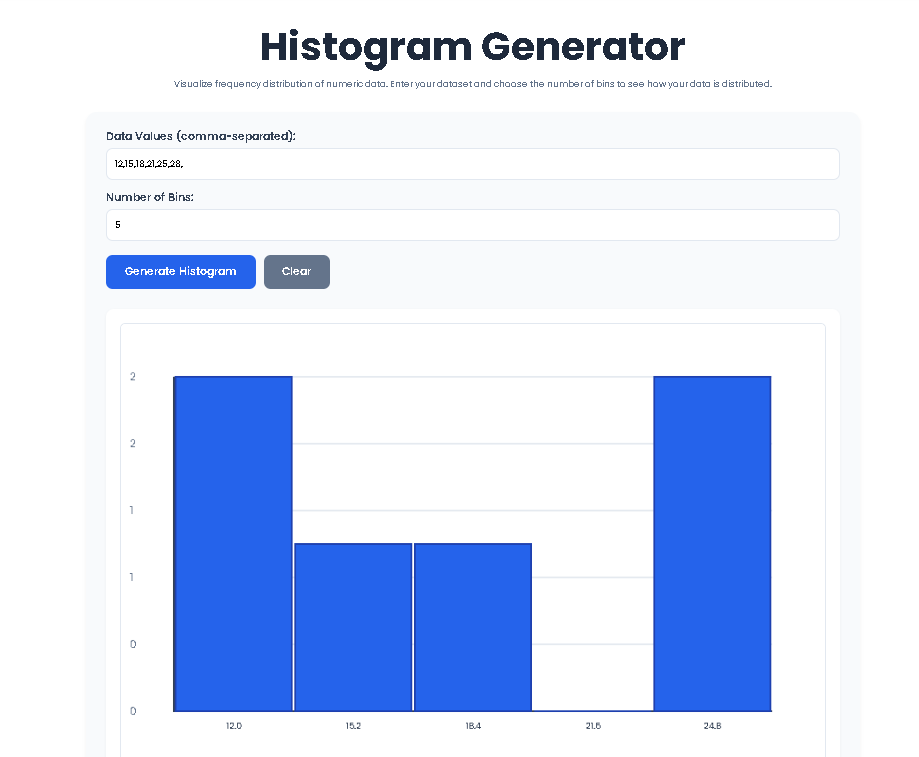
This guide follows the exact workflow of the tool you see on the page. Let’s walk through how to create your first chart.
Locate the field labeled “Data Values (comma-separated).” Here, you need to enter your numerical dataset. You can type the numbers directly or paste them from a spreadsheet, document, or another source.
Format Correctly: Separate each number with a comma (e.g., 12, 15, 18, 22, 25, 28).
Example: You could input: 45, 67, 52, 89, 76, 61, 58, 73, 69, 80, 55, 48, 92, 65, 71
In the “Number of Bins” field, you determine how many bars your histogram will have. Bins group your data into ranges.
Default Value: The tool suggests 5 bins, which is a good starting point for most datasets.
Customization: You can increase or decrease this number (between 2 and 20). More bins show finer detail but can become fragmented; fewer bins provide a broader overview. For the example data above, trying 6 or 7 bins might give a clearer picture of the distribution.
Click the blue “Generate Histogram” button. The tool’s script now:
Parses your comma-separated input into an array of numbers.
Finds the minimum and maximum values in your dataset.
Divides the total range by your chosen bin count to calculate the width of each bin.
Counts how many data points fall into each bin.
Dynamically draws the chart on the canvas, scaling the bars proportionally to the highest frequency.
Once the chart appears, you can immediately see:
Bar Heights: Represent the frequency (count) of data points in that bin.
Bin Range Labels: At the bottom of the chart, showing the numerical interval each bar covers.
Frequency Axis: On the left, showing the scale for the count of data points.
Analyze the shape—is it symmetrical (bell-shaped), skewed left or right, or uniform?
Want to try a different bin count or input new data? Click the grey “Clear” button. This will reset the data field, revert the bin count to 5, and hide the chart, allowing you to start a fresh analysis instantly.
Leveraging a dedicated tool like this Histogram Generator offers distinct advantages:
Speed and Efficiency: Bypass the 10+ steps required in spreadsheet software. Your visualization is ready almost the moment you click “generate.”
Guaranteed Accuracy: Automated math eradicates the risk of miscalculation during manual binning or frequency counting, which is crucial for academic and professional integrity.
Enhanced SEO and Readability for Reports: Quickly generate clear charts to embed in blogs, articles, or reports, making data-heavy content more engaging and understandable for your audience.
Multi-Language Support (Conceptual): While the interface is in English, the universal language of numbers means anyone, regardless of native language, can use it by inputting numeric data.
Effortless Editing & Iteration: The “Clear” function and live generation allow for rapid experimentation with different bin sizes to find the most revealing view of your data.
Copy & Download Convenience: While the current version displays the chart in-browser, you can easily take a screenshot for use in presentations or documents, maintaining a professional look.
The chart produced by our Histogram Generator provides a wealth of information:
The Shape (Distribution): Is it bell-shaped (normal), skewed (tail to left or right), bimodal (two peaks), or uniform?
Central Tendency: The bin with the highest bar shows where most of your data is clustered.
Spread (Variability): A wide chart with many bins indicates high variability; a narrow chart indicates that data points are close together.
Outliers: Data points that fall in very high or very low bins, far from the main cluster, may be outliers.
Start with Default Bins: Begin with 5 bins, then increase the number gradually. The “best” number often reveals a smooth shape without being too jagged or too blocky.
Clean Your Data: Ensure your input string has no typos, extra commas, or non-numeric characters for a flawless first run.
Use Meaningful Data: The Histogram Generator is only as insightful as the data you provide. Ensure your dataset is relevant to the question you’re trying to answer.
Context is Key: Always label and title your histogram when using it in a report. The tool provides the how, you provide the why.
The main purpose of this Histogram Generator is to provide a fast, accurate, and effortless way to visualize the frequency distribution of any numerical dataset. It automates the mathematical heavy lifting, allowing you to instantly see patterns, central tendency, and spread in your data, which is essential for statistical analysis, reporting, and informed decision-making.
There’s no single “perfect” number, but our Histogram Generator makes it easy to experiment. Start with the default (5). If the chart looks too blocky and hides detail, increase the bin count. If it looks too fragmented and noisy, decrease it. A good rule of thumb is to aim for a chart that reveals the underlying shape of the data (e.g., bell curve, skew) clearly. The tool’s instant feedback lets you test different counts in seconds.
Yes, you can input large comma-separated datasets. However, since the processing happens in your browser, extremely large datasets (e.g., tens of thousands of numbers) might cause slight delays. For typical academic, professional, or research purposes involving hundreds or a few thousand data points, the Histogram Generator performs flawlessly and instantly.
No. This is a critical feature of our tool. All calculations and chart rendering are performed locally on your device using JavaScript. Your data is processed in your browser’s memory for that session only and is never uploaded to any server. When you refresh or close the page, the data is gone, ensuring complete privacy and security for your sensitive information.
Toolota is your all-in-one online tools platform. Fast, simple, and free utilities designed to make everyday digital tasks easier and smarter.
