Convert your JSON data into CSV format instantly. Paste your JSON array of objects below, preview the table, and download as CSV file.
The JSON to CSV Converter is a powerful, client-side web application designed to perform a single task with perfection: converting an array of JSON objects into a properly formatted CSV file. Unlike generic text tools, it understands the structure of JSON, automatically extracts headers from your object keys, and meticulously formats each value, handling complexities like commas and quotes within the data to ensure your output is flawless. It’s more than a converter; it’s a data pipeline simplifier that includes validation, a live preview table, and a one-click download—all wrapped in an intuitive interface.
This tool is crafted for anyone who works with data:
Developers & Engineers: Quickly convert API responses (often in JSON) into CSV for reporting, debugging, or feeding into other systems.
Data Analysts & Scientists: Transform dataset samples from JSON-based databases or APIs into a format immediately usable in Excel, Google Sheets, R, or Python for analysis.
Digital Marketers & SEOs: Convert exported data from analytics or marketing platforms (like social media insights) from JSON to CSV for campaign reporting and visualization.
Students & Researchers: Easily migrate data from web sources or applications into spreadsheet software for academic projects and research.
Business Professionals: Create shareable reports from internal system data without needing technical know-how or specialized software.
This guide follows the exact workflow of the tool you see on the page.
Step 1: Prepare and Paste Your JSON Data
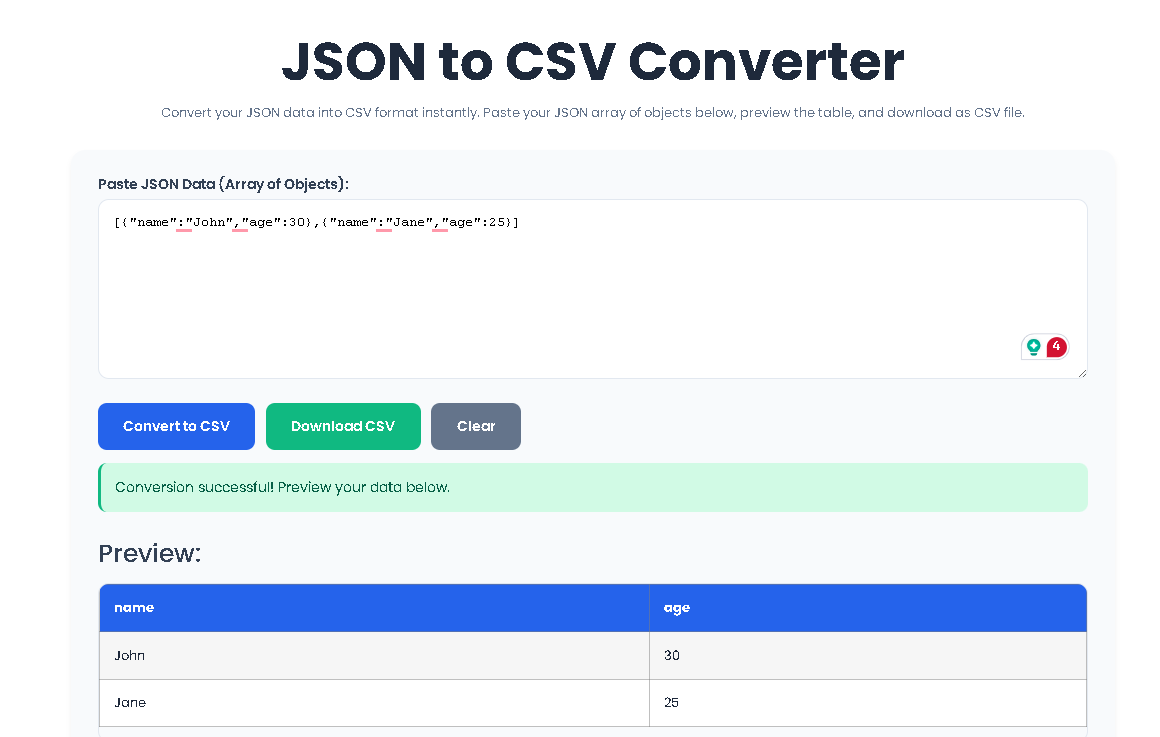
Locate your JSON data. It must be an array of objects, like this: [ {"name":"Alice","department":"Engineering"}, {"name":"Bob","department":"Marketing"} ]. Click inside the large text area labeled “Paste JSON Data (Array of Objects):” and paste your data. You can use the provided example as a template.
Step 2: Initiate the Conversion
Click the blue “Convert to CSV” button. The tool will immediately parse and validate your input.
If Successful: A green success message will appear stating “Conversion successful! Preview your data below.” The preview section will expand, showing a formatted table of your data. The “Download CSV” button will turn green and become visible.
If an Error Occurs: A red error message will explain the issue. Common errors include invalid JSON syntax, providing an object instead of an array, or an empty array. Correct your data in the text box and click the convert button again.
Step 3: Review the Table Preview
Examine the generated table. The top row contains your headers (derived from the keys of the first JSON object), and each subsequent row represents an object from your array. Scroll to ensure all data is displayed correctly.
Step 4: Download Your CSV File
Once satisfied with the preview, click the green “Download CSV” button. A file named converted_data.csv will be saved to your computer’s default download folder. You can now open this file in Microsoft Excel, Google Sheets, or any text editor.
Step 5: Clear and Start Anew (Optional)
To perform a new conversion, click the grey “Clear” button. This will reset the input text area, hide the preview and download button, and clear any messages, giving you a fresh slate.
Choosing Toolota’s converter provides distinct advantages that streamline your workflow:
Blazing Speed & Instant Results: Conversion happens in milliseconds. Paste your JSON and see the CSV preview instantly—no waiting for server processing or uploads.
Pixel-Perfect Accuracy: The tool employs robust escaping logic. If your data contains commas, double quotes, or line breaks, it will be correctly wrapped in quotes in the CSV, preventing column misalignment in programs like Excel.
100% Secure & Private: Since all processing occurs locally within your browser tab, your sensitive data never leaves your computer. There is no server transmission, ensuring complete confidentiality.
Clean, User-Friendly Interface: The design is focused and distraction-free. With clear labels, a spacious input area, and visually distinct buttons for each action, the tool is accessible to users of all skill levels.
Preview Before Download: The built-in dynamic HTML table preview allows you to verify the structure and content of your data before committing to a download. This immediate visual confirmation prevents errors.
Universal Accessibility: As a web-based tool, it works on any device with a modern browser—Windows, Mac, Linux, ChromeOS, even tablets. There are no compatibility issues.
Input
JSON is a lightweight, text-based format for representing structured data. It’s easy for humans to read and write, and easy for machines to parse. For this JSON to CSV Converter to work, your input must be a JSON array where each element is an object with key-value pairs.
Valid Example: [{"id": 1, "city": "New York"}, {"id": 2, "city": "London"}]
Invalid Example (Single Object): {"id": 1, "city": "New York"} (This is not an array).
Invalid Example (Array of strings): ["apple", "banana"] (Elements are not objects).
The tool uses the keys from the first object in the array to create the CSV column headers. All subsequent objects should have the same keys for a clean table, though missing values will be handled as empty cells.
Output
CSV is a simple file format used to store tabular data, such as a spreadsheet or database. Each line in the file corresponds to a row in the table. Within a line, fields (columns) are separated by commas. Our JSON to CSV Converter enhances basic CSV generation with critical formatting:
Header Row: The first line contains the column names.
Data Rows: Each following line contains the values for one JSON object.
Intelligent Escaping: Values containing commas, double quotes ("), or newlines are automatically enclosed in double quotes. Any double quotes within the value are doubled (e.g., "He said, ""Hello"""), preserving data integrity when opened in spreadsheet applications.
Validate JSON First: If you’re unsure about your JSON’s validity, use a JSON validator online before pasting it into the converter.
Ensure Consistent Structure: For the cleanest CSV, all objects in your array should have identical keys. Objects with missing keys will result in empty cells for that column.
Check the Preview: Always glance at the HTML table preview. It’s a truthful representation of what will be in your CSV file. If the preview looks wrong, the CSV will be wrong.
Complex Nested JSON: This tool is designed for flat, tabular data (an array of simple objects). If your JSON has deeply nested objects or arrays within objects, you may need to “flatten” that data first for optimal conversion.
There is no fixed limit imposed by Toolota. However, since the tool runs entirely in your browser, practical limits are determined by your device’s memory (RAM). Extremely large JSON files (hundreds of megabytes) may cause the browser tab to slow down or become unresponsive. For typical datasets of a few megabytes, performance is instant and seamless.
Yes, absolutely. The tool supports UTF-8 encoding, which covers a vast range of characters from different languages (like Arabic, Chinese, or Cyrillic) and special symbols. These characters will be correctly preserved in both the preview and the final downloaded CSV file.
The converter uses the keys from the first object in your array to define the CSV columns. For any subsequent object that is missing one of these keys, the corresponding CSV cell will be left empty. If an object has an extra key that wasn’t in the first object, that data will be ignored and not included in the CSV output. For consistent results, structure your data uniformly.
Yes, you can. The tool’s responsive interface is designed to work perfectly on all screen sizes. The text area, buttons, and preview table will adjust to fit your mobile or tablet browser, making it a handy tool for quick conversions on the go.
Toolota is your all-in-one online tools platform. Fast, simple, and free utilities designed to make everyday digital tasks easier and smarter.
