Resume Builder – Free Resume Maker | Toolota
Table of Contents
What This Tool Does
In today’s competitive job market, your resume isn’t just a document—it’s your personal marketing brochure, your first impression, and your ticket to interview opportunities. Yet creating a professional, visually appealing resume can be time-consuming, expensive, and technically challenging. Traditional word processors often result in formatting nightmares, while premium design software requires skills most job seekers don’t possess. This is where our Resume Builder revolutionizes the process, offering a seamless bridge between professional design and user-friendly editing.
The Resume Builder from Toolota addresses these pain points directly, providing an intuitive platform where design expertise meets practical functionality. Whether you’re a recent graduate crafting your first resume or an experienced professional updating your career history, this tool transforms the resume creation process from a chore into an efficient, even enjoyable experience. With seven distinct templates, live editing capabilities, and multiple export options, you’re equipped to create documents that not only contain the right information but present it in the most compelling way possible.
Who Choose Toolota
Recent Graduates and Entry-Level Seekers
For those creating first professional resumes, the Resume Builder provides structure that compensates for limited experience. The templates guide content placement while professional designs help overcome the “thin resume” appearance. The education section prominence in all templates particularly benefits recent graduates.
Career Changers
When transitioning between industries or roles, you need to reframe existing experience for new contexts. The Resume Builder‘ flexible editing lets you experiment with different wording and emphasis without starting from scratch each time. Multiple templates let you choose designs appropriate for your target industry.
Experienced Professionals
Mid-career and senior professionals benefit from the sophisticated templates that appropriately convey experience level. The tool handles complex career histories with multiple positions while maintaining clean organization. Executive-level templates (like Dark & Yellow and Bold Geometric) project appropriate authority.
Freelancers and Consultants
Independent professionals often need multiple resume versions for different client types or project categories. The Resume Builder‘s efficiency makes creating tailored versions practical. The professional designs help compete with larger agencies or firms.
Returning Workforce Members
Those re-entering the workforce after gaps can benefit from templates that emphasize skills and capabilities over chronological timelines. The clean designs help modernize your presentation regardless of when your experience occurred.
International Job Seekers
The A4 paper format is international standard, making resumes created with this tool appropriate for global applications. The professional designs transcend cultural differences in resume expectations.
Non-Native English Speakers
The structured sections and example text provide guidance on expected content and phrasing in English-language resumes. This reduces uncertainty about format expectations in different job markets.
How This Tool Works: The Most Detailed Section
Step 1: Template Selection
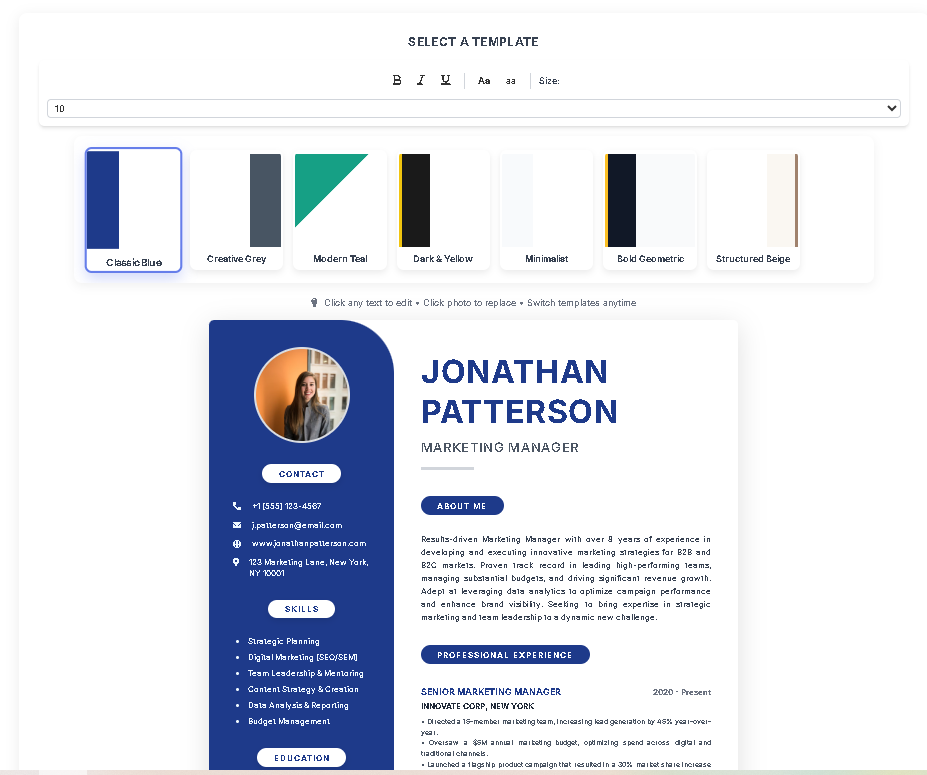
Begin by browsing the seven available templates using the horizontal slider. Each template card displays a color-coded miniature preview and descriptive name (Classic Blue, Creative Grey, Modern Teal, Dark & Yellow, Minimalist, Bold Geometric, Structured Beige). Click any template to apply it immediately to your resume. Don’t worry—you can switch templates at any point without losing your entered content.
Step 2: Personal Information Entry
Click directly on any text element to edit it. Start with your name at the top of the main content area—this is typically the largest text element and serves as the visual anchor. Continue to the contact information in the sidebar, updating phone, email, website, and address details. The contact section includes appropriate icons (phone, envelope, globe, location marker) that automatically align with your text.
Step 3: Profile Photo Addition
Click the circular profile image area in the sidebar. This triggers a file selection dialog—choose a professional headshot from your device. Supported formats include JPG, PNG, and other common image types. The system automatically crops and fits your image to the circular container. For best results, use a square or portrait-oriented image with good lighting and neutral background.
Step 4: Professional Content Development
Work through each resume section systematically:
About Me/Profile: Click the paragraph text and craft a compelling professional summary (typically 3-5 sentences highlighting your value proposition)
Skills: Edit the bullet-pointed list, keeping items concise and relevant to your target positions
Experience: For each position, edit the job title, company, dates, and description bullet points
Education: Update institution names, degrees, and graduation dates
References: Add contact information for professional references (optional section)
Step 5: Text Formatting and Emphasis
Use the formatting toolbar to enhance your content. Select any text (by clicking and dragging) and apply formatting options:
Click the B button for bold (ideal for job titles or key achievements)
Click the I button for italic (suitable for company names or publications)
Click the U button for underline (use sparingly for emphasis)
Use the case buttons to ensure consistent capitalization in headers
Select font sizes from the dropdown to adjust text hierarchy
Step 6: Template Customization and Review
If the initial template doesn’t feel quite right, return to the template slider and try alternatives. Each switch maintains all your entered content while applying the new design’s colors, fonts, and layout characteristics. Review your complete resume by scrolling through both sidebar and main content areas, checking for typos, consistent formatting, and overall visual balance.
Step 7: Export and Download
Choose your preferred output method:
PDF Download: Click the red “Download PDF” button. The system generates a print-optimized PDF file with embedded fonts and preserved formatting. The process takes 10-30 seconds depending on resume complexity.
Image Download: Click the green “Download Image” button to create a high-resolution PNG file. This is useful for online portfolios or application systems that accept image files.
Direct Printing: Click the blue “Print” button to send the resume directly to your printer using browser print functionality. The system applies print-specific optimizations to ensure perfect output.
Pro Tip: Save multiple versions if you’re applying to different types of positions—you can quickly duplicate your browser tab and create tailored resumes for each opportunity.
Benefits This Tools
Time Efficiency
Traditional resume creation can take hours—formatting in word processors, adjusting layouts, fixing alignment issues. Our Resume Builder reduces this to 15-30 minutes for a complete, polished resume. The click-to-edit system eliminates formatting time, while template designs provide instant professional layouts. This efficiency is particularly valuable when you need to apply quickly for time-sensitive opportunities.
Professional Results Without Design Skills
The seven templates were created by professional designers with understanding of typography hierarchy, color psychology, whitespace balance, and visual flow. These design principles—which normally require training or hiring a designer—are built into every template. You benefit from professional design expertise regardless of your own visual design capabilities.
Consistency Across Applications
When applying to multiple positions, consistency in resume presentation projects professionalism and attention to detail. The Resume Builder ensures uniform formatting, spacing, and styling across all versions of your resume. This consistency extends to cover letters and other application materials if you use matching templates.
Mobile and Device Flexibility
Because the Resume Builder operates in your browser, you can work from any device with internet access. Start on your desktop, make quick edits on your tablet while commuting, do final reviews on your laptop—all without compatibility issues or file transfer problems. Your work is automatically saved in your browser session.
Cost Effectiveness
Professional resume writing services typically charge $100-$500, while premium template purchases can cost $20-$50 each. Our Resume Builder provides multiple professional templates with full editing capabilities completely free. There are no subscription fees, usage limits, or premium features locked behind paywalls.
ATS Compatibility
While visually appealing, the generated resumes maintain machine-readable text structure. PDF exports preserve text as selectable, searchable content (not flattened images), making them compatible with most Applicant Tracking Systems. The clean layouts and standard sections help ATS software correctly parse your information.
Confidence in Application Materials
Knowing your resume looks professionally polished eliminates one source of job search anxiety. When your document looks like it came from a career services professional, you approach applications with greater confidence. This psychological benefit shouldn’t be underestimated in competitive job markets.
Easy Updates and Revisions
Career progression means regular resume updates. With the Resume Builder, you can return to your resume anytime to add new positions, update skills, or refresh your professional summary. The editing process is just as simple months or years later, encouraging regular maintenance rather than dreaded complete overhauls.
7 Professional Template Designs Explained
Template 1: Classic Blue (Jonathan)
This traditional design features a deep blue sidebar against white main content, creating strong visual separation. The sidebar includes rounded “pill” headers with white text on blue background, while the main content uses inverse styling. This template projects professionalism and reliability, making it ideal for corporate, financial, legal, and government positions where conservatism is valued. The color psychology of blue conveys trust, stability, and competence.
Template 2: Creative Grey (Alfredo)
With its reversed layout (sidebar on the right) and sophisticated grey palette, this template offers contemporary elegance. The sidebar features subtle border-radius styling and clean typography. Headers use a unique left-border design with neutral background colors. This design suits professionals in design, marketing, architecture, and technology fields where modern aesthetics are appreciated without being overly flashy.
Template 3: Modern Teal (Olivia)
Featuring an angular clipped sidebar in refreshing teal, this template brings energy and modernity. The header design uses simple underline accents rather than filled backgrounds, creating a clean, spacious feel. Teal represents creativity, communication, and balance—making this template excellent for communications professionals, project managers, consultants, and healthcare administrators seeking a fresh yet professional appearance.
Template 4: Dark & Yellow (Lorna)
This bold combination pairs a dark charcoal sidebar with striking yellow accents. Headers feature geometric clipped shapes and high-contrast coloring. The design commands attention while maintaining sophistication through restrained yellow application. Ideal for executives, entrepreneurs, sales professionals, and anyone wanting to project confidence and energy. The dark background makes white text particularly readable.
Template 5: Minimalist (Adeline)
Characterized by subtle grey sidebar with thin border separation, this template emphasizes content over decoration. Headers use simple underlined styling with refined typography from the Merriweather font family. This design works exceptionally well for academic, research, writing, and analytical positions where substance should overshadow style. The clean aesthetic ensures nothing distracts from your qualifications and achievements.
Template 6: Bold Geometric (Shawn)
This template makes a statement with dark sidebar, bright yellow accents, and geometric header treatments. Text uses bold, uppercase styling with generous letter-spacing for impact. The design projects confidence and innovation, suitable for creative directors, startup founders, technology innovators, and professionals in competitive fields where standing out is advantageous. The yellow/black combination ensures high readability.
Template 7: Structured Beige (Kimberly)
Featuring warm beige tones with complementary brown accents, this template offers approachable professionalism. The reversed layout (sidebar right) with left border accent creates visual interest without overwhelming content. This design works well for education, human resources, nonprofit, and client-facing roles where warmth and approachability are valuable traits. The color scheme is particularly flattering when printed.
Text Editing & Formatting Capabilities
The Resume Builder‘s editing system bridges the gap between simplicity and control. Unlike basic text editors that offer either too few or too many options, this tool provides precisely the formatting capabilities that matter for resume creation.
Direct Content Editing: Simply click anywhere text appears and begin typing. The system maintains the existing styling—font, size, color, and spacing—so you focus on content rather than formatting. This approach eliminates the common frustration of accidentally disrupting carefully arranged layouts.
Selective Text Formatting: When you need to emphasize specific words or phrases, click and drag to select text, then use the formatting toolbar. The bold function is particularly useful for highlighting job titles, certifications, or key metrics in achievement bullet points. Italic works well for publication titles, company names, or subtle emphasis. Underline should be used minimally as it can reduce readability in printed documents.
Case Conversion Tools: The case buttons solve a common resume problem—inconsistent capitalization. Select any text and convert it to uppercase (ideal for section headers) or lowercase (for correcting accidental caps). This ensures professional consistency throughout your document without manual letter-by-letter editing.
Font Size Adjustment: The dropdown menu offers font sizes from 10 to 30 points. While the templates have optimal size defaults, you might need to adjust for particularly long job titles, to fit more content in limited space, or to improve visual hierarchy. Larger sizes work for your name or major headings; smaller sizes suit detailed bullet points or reference information.
Real-Time Visual Feedback: As you edit and format, changes appear immediately in the document preview. This instant feedback helps you judge content length, balance, and overall appearance. You can see exactly when a bullet point is becoming too long, when a section is becoming text-heavy, or when formatting creates visual clutter.
Content Preservation During Template Switches: A particularly sophisticated feature is content retention when changing templates. All your text—including formatting like bold and italic—transfers seamlessly between designs. This lets you experiment with different visual presentations without re-entering content, encouraging creative exploration without time penalty.
Important Conditions & Guidelines for Use
Content Quality Determines Results
The Resume Builder creates the container for your professional story, but the content quality determines effectiveness. Well-written achievement statements, strategic keyword inclusion, and compelling summaries are essential. The tool makes your content look professional, but you must provide substantive, relevant information.
Review Before Final Export
While the editing interface highlights most issues, conduct thorough reviews before final export:
Check spelling and grammar (consider pasting into a dedicated grammar checker)
Verify all dates for accuracy and consistency
Ensure contact information is current and professional
Confirm company names, titles, and details are correct
Review formatting consistency (especially bullet point usage)
Image Selection Guidelines
For profile photos:
Use recent, professional headshots (within last 2 years)
Ensure good lighting and neutral background
Maintain professional attire and expression
Square or portrait orientation works best
File size under 2MB for quick uploading
Template-Industry Alignment
Consider your industry norms when selecting templates:
Conservative fields (law, finance, government): Classic Blue, Minimalist
Creative fields (design, marketing, media): Creative Grey, Modern Teal, Bold Geometric
Technology: Modern Teal, Creative Grey, Bold Geometric
Healthcare/Education: Modern Teal, Structured Beige, Classic Blue
Executive/Leadership: Dark & Yellow, Bold Geometric, Classic Blue
File Management
Save multiple versions if applying to different positions
Rename downloaded files to include your name and version
Store originals in the Resume Builder by keeping browser tabs open or taking screenshots
Create backups of important resumes outside the browser
Legal and Ethical Use
Only include truthful, verifiable information
Respect copyright by not using templates for commercial resale
Ensure you have rights to any uploaded images
Use appropriate discretion with reference contact information
System Requirements
The Resume Builder works with:
Modern browsers (Chrome 80+, Firefox 75+, Safari 13+, Edge 80+)
JavaScript enabled (required for functionality)
Internet connection for initial load (offline use possible after loading)
Screen resolution of 1024×768 or higher for optimal editing
Frequently Asked Questions (FAQ)