Convert file sizes between bytes, KB, MB, GB, TB, PB with decimal (1000) or binary (1024) math. Includes presets, device capacity estimates, and a conversion history.
| Unit | Value |
|---|
A File Size Converter is an essential digital tool designed to translate a file’s size from one unit of digital information to another. Whether you’re a developer checking script sizes, a photographer managing RAW image libraries, or a student calculating storage needs for a project, understanding the relationship between Bytes, Kilobytes (KB), Megabytes (MB), Gigabytes (GB), Terabytes (TB), and Petabytes (PB) is crucial.
Toolota’s File Size Converter goes beyond basic arithmetic. It’s a comprehensive, web-based calculator that provides instant, accurate conversions while addressing the common point of confusion in digital storage: the difference between decimal (base 10) and binary (base 2) systems. This tool not only gives you a simple number but contextualizes it with visual charts, storage device estimates, and real-world file equivalents, making abstract data tangible and easy to understand.
This is the core technical differentiator of a professional File Size Converter. Here’s a simple breakdown:
Decimal (SI Standard): Uses powers of 10.
1 KB = 1,000 Bytes
1 MB = 1,000 KB = 1,000,000 Bytes
Used by: Hard drive manufacturers, internet speed (Mb/s, Gb/s), and most network-related measurements. This is why a “1 TB” drive shows up as about 931 GB in Windows.
Binary (IEC Standard): Uses powers of 2.
1 KiB = 1,024 Bytes
1 MiB = 1,024 KiB = 1,048,576 Bytes
Used by: Operating systems (Windows, macOS, Linux), file managers, and RAM measurement. The “GiB” or “TiB” notation is technically correct here, though often displayed as “GB” or “TB.”
Toolota’s tool clearly labels these options and applies the correct math, ensuring your conversions are accurate for your specific use case, whether it’s buying storage or managing system files.
This guide walks you through the exact interface and workflow of Toolota’s File Size Converter, ensuring you can leverage every feature without confusion.
Step 1: Input Your File Size Value
Locate the “Value” input field at the top-left of the tool. Enter any positive number. You can use decimals for precision (e.g., 1.5 or 0.75). The field is pre-filled with 1 to get you started immediately.
Step 2: Select the “From” Unit
Directly to the right of the value field is the “From Unit” dropdown menu. Click to select the unit of the value you just entered. Options range from Bytes to Petabytes (PB). By default, it’s set to MB (Megabytes), a common starting point for many files.
Step 3: Choose Your Calculation Mode
This is a critical step. Use the “Calculation Mode” dropdown to select:
Decimal (1 KB = 1000 bytes): Used by storage manufacturers (hard drives, SSDs, USB drives) and in data transmission contexts.
Binary (1 KiB = 1024 bytes): Used by operating systems (Windows, macOS) and software to report file and storage capacity.
Your choice here will change all subsequent calculations. The tool defaults to Decimal mode.
Step 4: (Optional) Apply a Quick Preset
To speed up common tasks, use the “Quick Presets” dropdown. Selecting an option like “Photo (2 MB)” or “Game Download (5 GB)” will automatically populate the Value and From Unit fields for you. This is perfect for quick estimations.
Step 5: Initiate the Conversion
Click the blue “Convert” button. The conversion happens in real-time, but this button ensures a deliberate action. Instantly, the entire interface updates with your results.
What You’ll See After Converting:
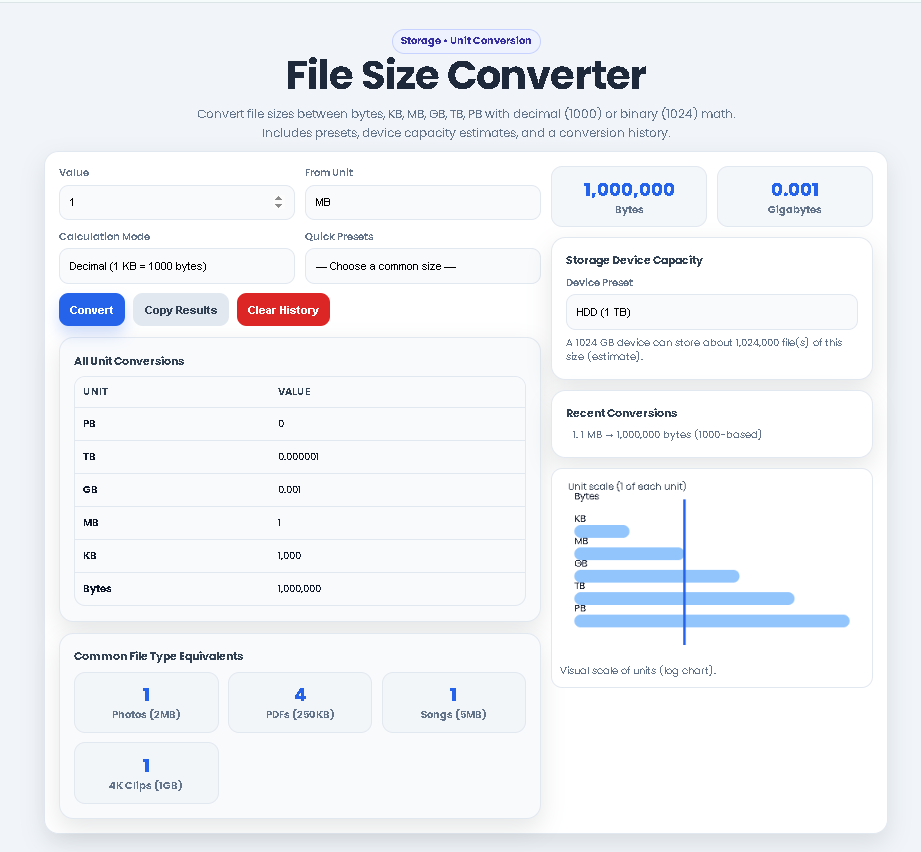
All Unit Conversions Table: A clean table on the left shows the equivalent size of your input across all six units (PB down to Bytes), formatted for easy reading.
Key Metrics (KPI): On the right sidebar, see the total Bytes (exact count) and Gigabytes (detailed decimal) for your file.
Common File Equivalents: Four boxes appear showing approximately how many “Photos (2MB)”, “PDFs (250KB)”, etc., your file size represents.
Storage Device Capacity Estimate: Below the KPIs, choose a device (e.g., “HDD (1 TB)”) from the dropdown. The tool instantly calculates and displays how many of your files would fit on that device.
Visual Logarithmic Chart: At the bottom right, a bar chart visualizes the scale of each unit. A vertical blue marker indicates where your specific file size falls on this spectrum.
Recent Conversions History: Your conversion is logged at the top of the history panel, allowing you to quickly reference past calculations.
Step 6: Utilize Additional Actions
Copy Results: Click the “Copy Results” button to copy the entire conversion table to your clipboard as formatted text, ready to paste into a report or email.
Clear History: Use the “Clear History” button to reset the recent conversions log.
Speed and Efficiency: Get complex, multi-unit conversions in less than 10 seconds, far faster than manual calculation or searching for separate converters.
Pinpoint Accuracy: Eliminates human error in decimal-binary transitions and exponential math, providing reliable numbers for critical decisions.
Informed Decision-Making: The device estimator and file equivalents turn raw data into actionable insights, helping you choose the right storage product.
Educational Clarity: The visual chart and clear separation of calculation modes demystify digital storage, making you more knowledgeable.
Clean, Intuitive UX: The interface is designed for focus, with no distracting ads or cluttered layouts, ensuring a smooth user experience.
Convenience & Portability: Being web-based, it works on any device with a browser. The copy function makes sharing results effortless.
Output Depends on Input Quality: The accuracy of the equivalents and estimates is directly tied to the accuracy of the value you input.
Device Estimates Are Theoretical: The “fits on device” calculation is a best-case scenario, assuming no other files and perfect storage efficiency. Actual capacity may vary slightly due to file system overhead.
Context Dictates Mode: Ensure you select the correct Decimal/Binary mode for your task. Using the wrong one is the most common source of perceived “error.”
Educational Tool: While highly accurate, this File Size Converter is designed for planning, estimation, and learning. Critical system operations should be verified with specialized software.
First, check your file’s properties in your operating system (right-click > Properties on Windows; Get Info on Mac). Note the size shown by the OS (this uses binary mode). Enter that number into the File Size Converter, select the corresponding unit (likely MB or GB), and set the mode to Binary for an accurate conversion to other units. For understanding how a drive manufacturer would list it, switch to Decimal mode.
You are seeing the difference between decimal and binary systems. 1 GB in Decimal = 1,000 MB. 1 GB in Binary = 1,024 MiB (often labeled as MB). Our File Size Converter lets you see both by toggling the “Calculation Mode.” Always check which standard your source number is using.
While not a direct download time calculator, it provides the core data. Use the tool to convert your file size to Megabytes (MB). Then, using your internet speed (e.g., 50 Mbps), you can estimate time. Remember: 1 Byte = 8 bits. Our converter gives you the accurate file size in MB, which is the first step in that calculation.
The presets are perfect for quick, common comparisons. For example, select “HD Photo RAW (15 MB)” to instantly see that it equals 0.015 GB. Then, use the “Device Preset” dropdown to see how many such photos fit on a “USB (128 GB).” This workflow is ideal for photographers planning a shoot or someone cleaning up their device storage.
Toolota is your all-in-one online tools platform. Fast, simple, and free utilities designed to make everyday digital tasks easier and smarter.
