
Stock Inventory
Enterprise Asset Management Portal
System Active
Total Items
0
In Stock
0
Low Stock
0
Empty
0
Enterprise Asset Management Portal
Total Items
0
In Stock
0
Low Stock
0
Empty
0
An Inventory Stock Tracker is a specialized digital tool designed to monitor, manage, and optimize the quantities of goods or products a business holds. Unlike manual spreadsheets or paper-based systems, a modern Inventory Stock Tracker like the one offered by Toolota provides a visual, real-time, and interactive dashboard that transforms complex inventory data into actionable insights. It serves as a central nervous system for your stock, constantly checking levels against predefined thresholds and alerting you before problems escalate into costly stockouts or overstock situations. In essence, it replaces guesswork with precision, ensuring you always know exactly what you have, what you need, and when you need to reorder.
Manual inventory management is fraught with risk. Miscounts, delayed updates, and forgotten reorders can lead to missed sales, customer dissatisfaction, and cash flow problems. An automated Inventory Stock Tracker eliminates these pain points. For small to medium-sized businesses, the ability to set a minimum stock alert—like defining a 5-unit threshold for a popular widget—means you receive a visual warning the moment stock dips to that level. This proactive approach is the core value of Toolota‘s system. It’s not just about recording numbers; it’s about creating a responsive system that helps you prevent shortages, reduce carrying costs for excess stock, and make data-driven purchasing decisions.
This section details the exact process of using the tool based on its actual interface and functionality. Follow these steps to master your inventory management.
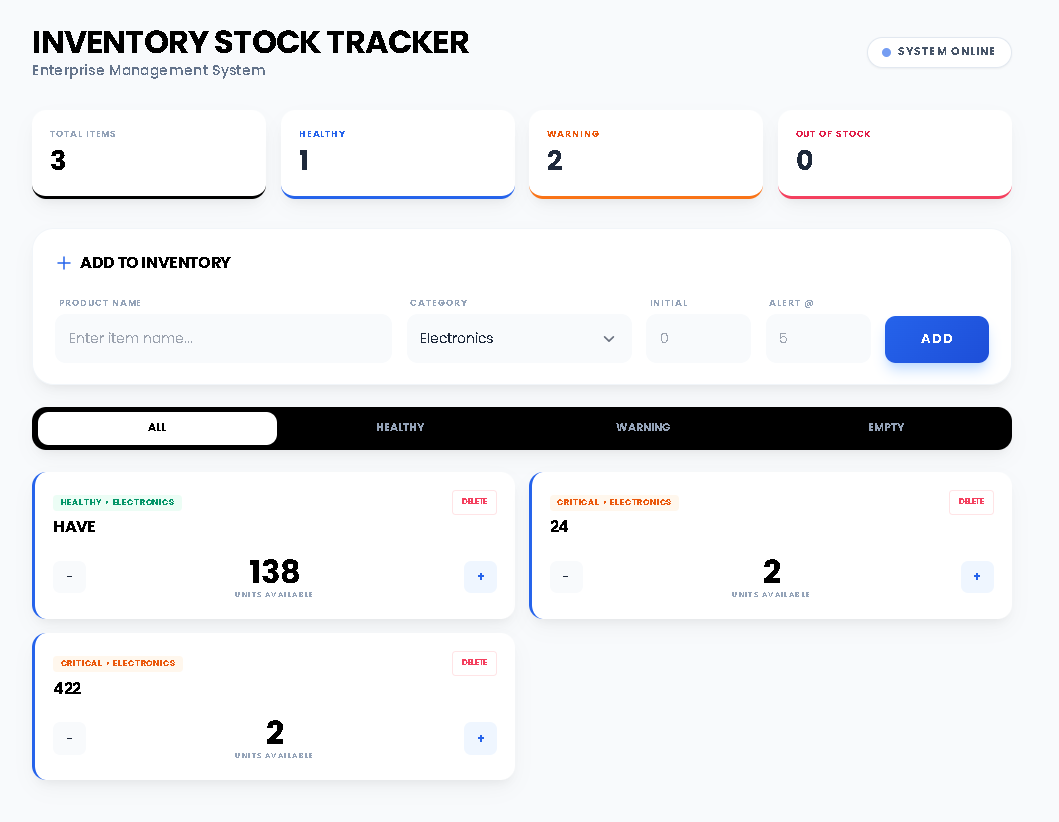
Navigate to the Toolota Inventory Stock Tracker dashboard. You will be presented with a clean, two-panel interface. The left panel is for data input (“New Entry”), and the right panel displays your live inventory list and controls. Notice the four stat cards at the top giving you an immediate overview.
In the “New Entry” form on the left:
Product Name: Enter a clear, identifiable name (e.g., “Wireless Mouse – Model X”).
Current Stock: Input the exact quantity currently in your possession. This must be a number (0 or higher).
Min. Alert: Set your low-stock warning threshold. This is the quantity at which you want the system to flag the item. For example, if you set this to 5, the item’s status will change to “Low Stock” once its quantity reaches 5 or fewer.
Click the “Register Product” button. A confirmation toast message will appear, and your new product will instantly be added to the list on the right.
Once added, each product card is color-coded with a status badge:
Healthy (Green): Stock is above your set minimum alert level.
Low Stock (Orange): Stock is at or below your minimum alert level but is not zero. This is your signal to reorder.
Out of Stock (Red): Stock has reached zero.
Use the filter buttons (“All Items,” “Healthy,” “Warning,” “Empty”) above the list to instantly view only the items in a specific status. This is crucial for quickly identifying which items need urgent attention.
On each product card, you will find a central display of the “Current Balance” (the stock number) flanked by four adjustment buttons:
-5 / -1 Buttons (Grey): Use these to decrement stock, simulating a sale, shipment, or loss. Clicking “-1” reduces the count by one; “-5” reduces it by five.
+1 / +5 Buttons (Blue): Use these to increment stock, simulating a new shipment, purchase, or return. Clicking “+1” adds one; “+5” adds five.
The status badge and statistics at the top of the dashboard update immediately after every click. There is no “save” button—all changes are saved automatically to your browser’s local storage.
To remove an item from your tracker entirely (e.g., a discontinued product), click the trash can icon in the top-right corner of its product card. A confirmation toast will appear.
Adopting this Inventory Stock Tracker translates into tangible business advantages:
Prevent Lost Sales: Visual low-stock warnings ensure you reorder before you run out, keeping customers happy.
Save Time: Eliminate daily manual counts. A 30-second glance at the dashboard gives you full control.
Improve Accuracy: Remove human error from stock counting with digital, button-click adjustments.
Optimize Cash Flow: Avoid tying up capital in excessive safety stock by maintaining lean, well-monitored inventory levels.
Gain Peace of Mind: The system is always on, providing a single source of truth for your inventory health.
Input Quality: The accuracy of your tracking depends entirely on the accuracy of your initial data entry and diligent use of the adjustment buttons after every stock movement.
Browser Dependency: Data is stored locally in the browser you use. Clearing your browser cache/cookies will delete your inventory data. For backup, periodically export your data by copying from localStorage (Developer Tools).
Review Process: While the tool automates tracking, periodic physical audits are recommended to reconcile digital counts with actual stock.
Usage Scope: Designed for legitimate inventory management. The tool is not intended for illegal or harmful purposes.
The Toolota Inventory Stock Tracker uses your web browser’s built-in localStorage technology. This means all your product data, stock levels, and settings are saved directly on the device you are using. It persists between sessions, so you can close the browser and return later to find your inventory intact. For safety, avoid clearing your browser cache for this site.
Because data is stored locally on each device, your inventory list on your office computer will be separate from the list on your home laptop. This tool is ideal for managing inventory from a single primary device or for individual department-level tracking.
The “Min. Alert” is your early warning system. Set it to the minimum quantity you are comfortable having before placing a new order. Consider your product’s sales velocity and supplier lead time. For a fast-selling item with a 2-day lead time, you might set a higher threshold (e.g., 20 units) than for a slow-moving item (e.g., 2 units).
There is no hard-coded limit within the tool’s interface. However, performance is subject to your browser’s localStorage capacity (typically 5-10MB per domain), which can hold thousands of inventory items easily. The interface is designed to remain smooth and filter quickly even with a large list.
Toolota is your all-in-one online tools platform. Fast, simple, and free utilities designed to make everyday digital tasks easier and smarter.