Professional Image Inspection System
Hover or touch the product navigator to activate the high-resolution zoom stream.
In the digital marketplace, seeing is not just believing—it’s deciding. The Product Image Zoom Viewer is a sophisticated, web-based application designed to bridge the gap between a standard product photo and the need for microscopic detail. This isn’t a simple magnifying glass; it’s a professional-grade visual inspection system that operates directly in your browser.
Built by Toolota, this tool transforms how we interact with product imagery online. It addresses a critical pain point: the inability to inspect fine details—like fabric texture, stitching quality, material grain, or print precision—from a standard e-commerce image. By providing a dedicated, interactive “lens” and a separate high-definition viewport, the Product Image Zoom Viewer empowers users to conduct thorough visual due diligence before making a purchase or quality assessment. It turns passive viewing into active analysis, ensuring nothing is left to chance.
This tool serves a diverse audience whose common need is visual clarity:
E-commerce Sellers & Managers: To ensure product photos accurately represent item quality, checking for flaws, accurate color representation, and detail clarity before listing.
Online Shoppers & Consumers: To make confident purchasing decisions by inspecting product details up close, reducing returns and dissatisfaction.
Product Photographers & Designers: To QA their own shots, verifying focus, sharpness, and detail capture for client deliverables.
Quality Assurance (QA) Teams: To perform remote visual inspections of manufactured goods, components, or materials using supplied digital images.
Auction & Collectible Sites: For buyers to authenticate items by examining stamps, signatures, brushstrokes, or wear patterns in high-resolution images.
If your work or decisions rely on the details hidden within a digital image, this Product Image Zoom Viewer is your essential digital loupe.
This guide walks you through the exact functionality as coded in the tool. No assumptions, just the real workflow.
Step 1: Load Your Image
You have three precise methods to get your product image into the system:
Select from Gallery: Click any of the thumbnail buttons below the main navigator image. The selected image will load as the primary inspection source, and the button will highlight.
Upload a File: Click the “Upload Image” area or browse to select an image file (JPG, PNG, etc.) from your device. The tool will process and display it instantly.
Paste a URL: Enter the direct URL of an online image into the text field and click “Load.” The tool will fetch and display it. (Note: The URL must be publicly accessible and point directly to an image file).
Step 2: Activate the Zoom Inspection
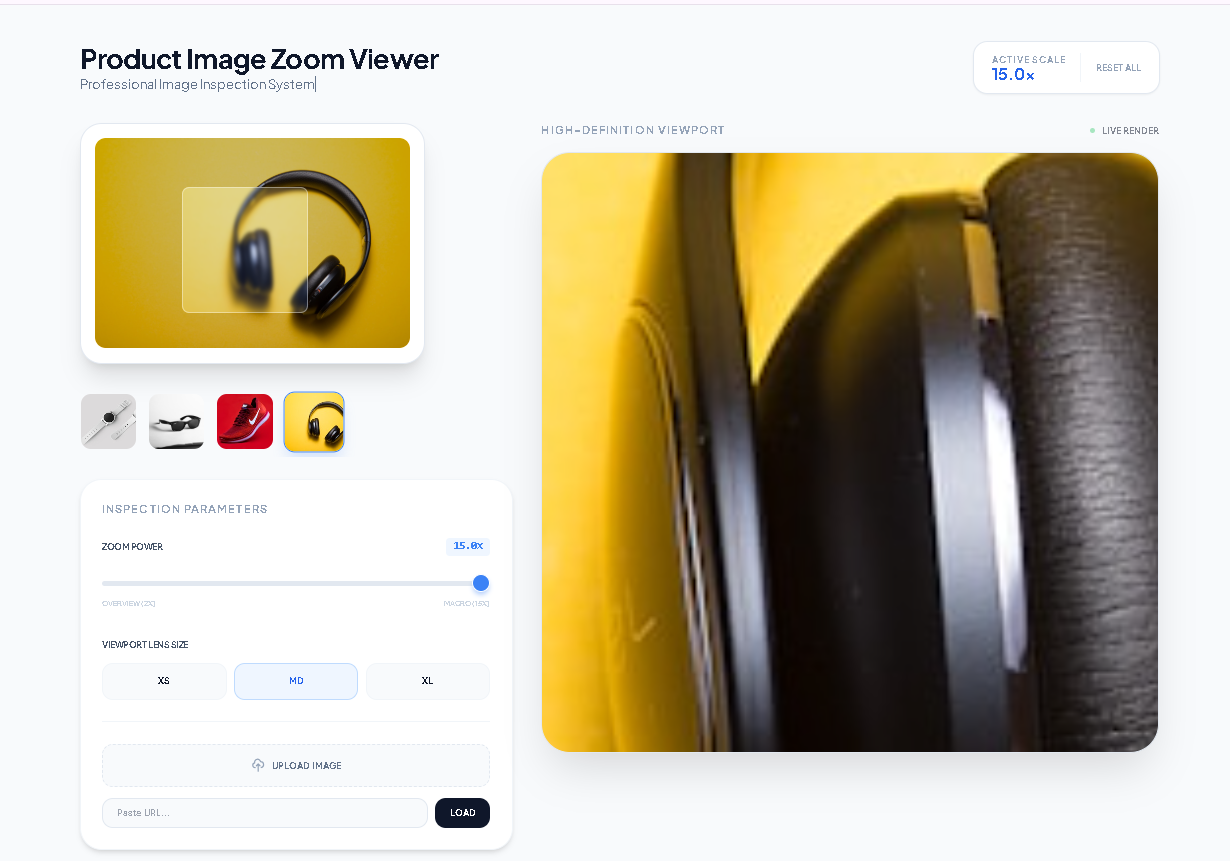
Hover your mouse cursor (or touch and hold on a mobile device) over the main “Navigator” image on the left. Instantly, two things happen:
A semi-transparent, movable zoom lens (viewport) appears over your cursor position.
The right-hand “High-Definition Viewport” panel activates, displaying a large, magnified view of the area under the lens.
Step 3: Navigate and Inspect
Move your cursor (or finger) around the Navigator image. The lens follows in real-time, and the HD Viewport dynamically updates to show the magnified section corresponding to the lens’s center point. This allows you to scan the entire product image at a macro level.
Step 4: Adjust Inspection Parameters (Customize Your View)
Control Zoom Power: Use the “Zoom Power” slider. Drag it from 2x (wide overview) to 15x (extreme macro). The “Active Scale” readout updates live. A higher scale reveals finer details but covers a smaller area.
Change Lens Size: Click the “XS” (80px), “MD” (140px), or “XL” (200px) buttons. This changes the physical size of the inspection lens on the Navigator, which in turn alters the field of view in the HD Viewport. A smaller lens means a more “zoomed-in” but narrower view in the results panel.
Step 5: Reset or Change Image
Click the “Reset All” button to revert to the default sample image, reset the zoom scale to 5.0x, and clear any uploaded files or URLs.
The Product Image Zoom Viewer excels due to its intentional, user-centric architecture:
Dual-Panel, Live-Render Interface: The separation of Navigator and HD Viewport prevents obstruction. The HD panel provides an uninterrupted, clean space for analysis, with a “Live Render” indicator confirming real-time processing.
Smooth, Animated Tracking: The lens and zoom result follow your cursor with a slight smoothing algorithm, creating a professional and fluid user experience rather than a jarring, instant jump.
Precision Customization: The granular zoom slider (0.1 increments) and fixed lens-size presets give you exact control over your inspection parameters, catering to both broad surveys and pinpoint detail checks.
Multi-Source Image Input: The combination of a thumbnail gallery, file uploader, and URL loader makes the tool incredibly versatile for different workflows, from using provided samples to analyzing your own assets.
Responsive & Touch-Optimized: The interface adapts elegantly to mobile devices. On smaller screens, the HD Viewport becomes a fixed panel at the top of the screen, ensuring the zoomed result remains highly visible and usable with touch gestures.
To ensure the best results from the Product Image Zoom Viewer, consider these conditions:
Input Image Quality is Paramount: The tool magnifies what you give it. Low-resolution, blurry, or heavily compressed images will not reveal more detail when zoomed; they will simply pixelate. For best results, use high-resolution source images.
Browser Compatibility: For full functionality, use a modern, updated web browser. The tool relies on contemporary HTML5, CSS3, and JavaScript APIs.
AI-Generated Content Note: While the tool itself is not AI-generated, if you are using it to inspect AI-generated product images, be aware that fine details may be synthesized and not representative of a physical object.
Intended Use: This tool is designed for lawful visual analysis of products and images. Its precision makes it suitable for professional, educational, and personal inspection purposes.
This study timer implements the complete Pomodoro Technique with visual progress tracking, session statistics, and structured work-break cycles—unlike basic timers that only count down.
Yes, our study timer offers preset modes (25, 5, and 15 minutes) plus a custom input for any duration between 1 and 120 minutes.
Your session statistics automatically save to your browser’s local storage every 10 seconds, so progress remains on the same device and browser.
Absolutely. The study timer is fully responsive and works on all devices—desktops, tablets, and smartphones—with the same features and interface.
Toolota is your all-in-one online tools platform. Fast, simple, and free utilities designed to make everyday digital tasks easier and smarter.
