High Performance Savings Tool
The Discount Calculator from Toolota is provided as a free, high-accuracy tool for personal, educational, and legitimate business use. The output is entirely dependent on the accuracy of the numerical values and logic (percentage vs. fixed) entered by the user. While the calculation engine is robust, users are advised to apply critical judgment for high-stakes financial decisions. The tool must not be used for any illegal, fraudulent, or harmful purposes.
Working out the final cost after a “25% off” deal, then a “$10 coupon,” and finally adding 8% sales tax can be incredibly annoying and prone to mistakes. With all the layered discounts, flash sales, and multiple coupons we see these days, trying to do the math in your head just isn’t accurate enough anymore. That’s when having a dedicated, advanced Discount Calculator becomes really useful.
No more scribbling on scraps of paper or wrestling with spreadsheet formulas. A tool designed specifically for this, like the one from Toolota, turns complicated calculations into a quick, visual, and easy process. It lets you know exactly what you’ll pay—or what you should charge—right down to the cent, so there are no unpleasant shocks at the checkout or when you’re finalizing a bill. Whether you’re someone who loves finding deals, run a small business, are a student, or work with finances, having instant access to a trustworthy Discount Calculator is incredibly helpful for making smart choices about what you buy or how you price things.
Our Discount Calculator is super easy to use! Just follow these steps to turn your original price into your final total:
Step 1: Enter the Original Price:
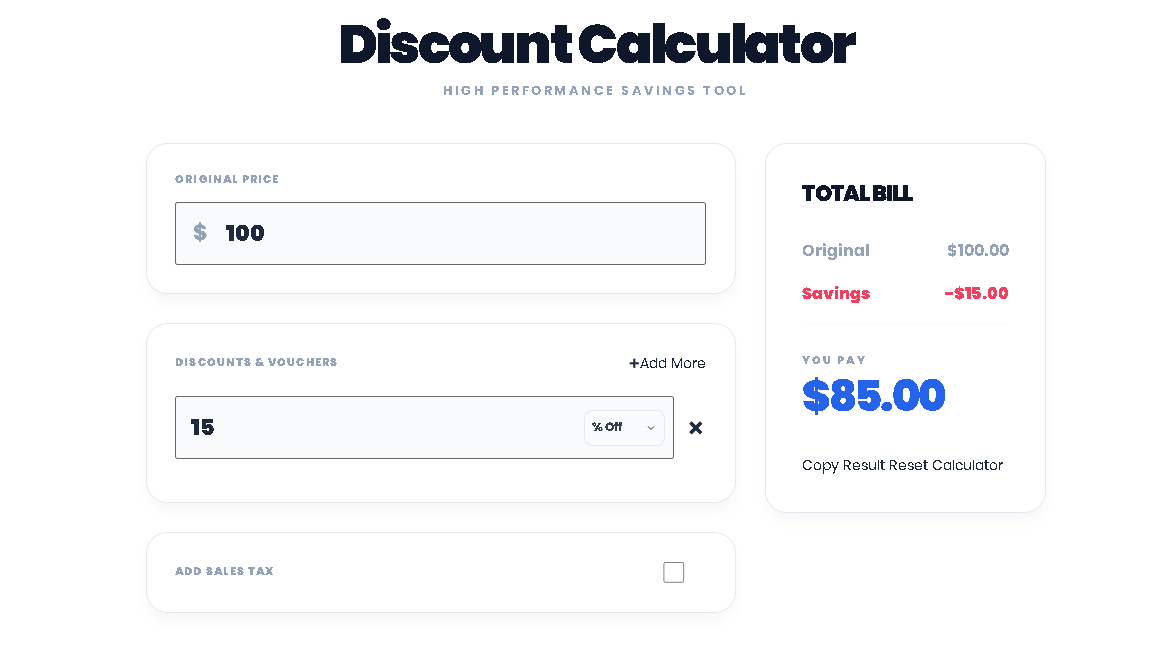
Look for the “Original Price” box right at the top. Click inside the big field—it already has a “$” sign. Type in the starting price of your item or service, before any discounts or taxes. You’ll see the “Original” amount update right away in the summary panel on the right.
Step 2: Add Your Discounts & Vouchers :
This is where the magic happens! In the “Discounts & Vouchers” section:
Click the blue “Add More” button whenever you need to add another discount.
For each new line, type the discount amount into the main box.
Right next to that, use the little dropdown menu to pick the discount type. Select “% Off” for a percentage (like 15% off) or “$ Off” for a fixed amount (like a $5 coupon).
You can add as many discounts as you need. For instance, you could add a line for a “30% Off” store sale and another for a “$20” rebate.
Step 3: Add Sales Tax:
(If You Need To) Find the “Add Sales Tax” section. If your purchase has tax, flip the switch to “ON.” This will show you a new field where you can enter your local tax rate (like 6.5 for 6.5%). The tax is added only after all your discounts are applied, which is how it’s normally done.
Step 4: Check Your Summary
Take a look at the “Total Bill” section over on the right. Think of this as your live results dashboard – it gives you a clear breakdown of everything:
Original Price: This shows the price you first put in.
Savings: This displays the total value of all the discounts you’ve applied, added together (it shows up as a negative number in red).
Tax: This is the calculated tax amount (only if the tax option is turned on).
You Pay: This is the main number you need to focus on – it’s the final amount you actually owe after all discounts and taxes are figured in.
Step 5: Save or Start Over
To save what you’ve calculated: Just hit the “Copy Result” button. This will copy a clean summary of your final total and total savings to your computer’s clipboard, so you can easily paste it wherever you need it.
To clear everything and start fresh: Click the “Reset Calculator” button, and all the fields will be cleared for a new calculation.
Speed & Instantaneity: Get your results in under 5 seconds – no more tedious manual calculations or staring at spreadsheet formulas while they figure things out.
Pinpoint Accuracy: Say goodbye to human mistakes in both the math and figuring out which discount applies when. This ensures your calculations are always spot-on.
Clear Visual Breakdown: The summary panel gives you an instant, easy-to-understand look at how everything – the original price, each discount, and the tax – adds up to the final total.
Exceptional UX: The tool is a joy to use, thanks to its clean, modern look, big input fields, and smart layout that makes everything feel logical and straightforward.
Actionable Output: With the “Copy Result” button, you can instantly grab your calculation to save or share, skipping the hassle of screenshots or retyping numbers.
The Discount Calculator from Toolota is provided as a free, high-accuracy tool for personal, educational, and legitimate business use. The output is entirely dependent on the accuracy of the numerical values and logic (percentage vs. fixed) entered by the user. While the calculation engine is robust, users are advised to apply critical judgment for high-stakes financial decisions. The tool must not be used for any illegal, fraudulent, or harmful purposes.
The Discount Calculator applies them sequentially. For example, on a $100 item, a 20% discount is applied first ($100 – $20 = $80). A further 10% discount is then applied to the new $80 price ($80 – $8 = $72), not the original $100. This is the correct commercial and mathematical method.
Absolutely. While ideal for single items, you can use it for bulk by entering the total wholesale price as the “Original Price.” Then, add discount rows for any tiered or volume-based discounts offered by the supplier to find your final net cost.
In the vast majority of retail and commercial transactions in the United States and many other regions, sales tax is calculated on the final selling price after all applicable discounts and coupons have been applied. Our Discount Calculator follows this standard practice to give you the true “out-the-door” cost.
No, there is no hard-coded limit. You can keep clicking “Add More” to create as many sequential discount rows as your specific pricing scenario requires, making it an incredibly flexible tool for complex promotions.
Toolota is your all-in-one online tools platform. Fast, simple, and free utilities designed to make everyday digital tasks easier and smarter.
