
$
Apply Tax / VAT
%
Subtotal
$0.00
Savings
-$0.00
Tax
$0.00
Grand Total
Accurate pricing estimations for unit costs, taxes, and discounts.
$0.00
-$0.00
$0.00
Grand Total
In a world where every penny matters and getting your finances right is absolutely essential, having the right tool can really tip the scales between making a profit or taking a loss. Meet the Price Calculator from Toolota – it’s a smart, web-based application crafted to give you instant, exact cost calculations for any project, purchase, or quote you need to make. This isn’t just a basic multiplication tool; it’s a full-fledged financial helper that takes into account the real-world twists and turns of modern deals.
At its heart, the Price Calculator is an easy-to-use digital helper that lets just about anyone—whether you’re a freelancer, an entrepreneur, a student, or a project manager—figure out the final cost of goods or services. It smoothly manages all the key parts of pricing: the base cost of each item, how many you’re buying, different kinds of discounts, and any taxes or VAT that apply. What really makes it stand out is how quickly it works, its clean and simple design, and handy features like keeping a record of your past calculations and the ability to copy summaries, all aimed at giving you accuracy you’d expect from an expert without needing to be one yourself.
Ever thought, “Why not just whip out a spreadsheet or use my phone’s calculator?” Well, you could, but honestly, that route is a bit of a gamble and not the most efficient way to go. Doing the math yourself leaves a lot of room for slip-ups—a tiny decimal point in the wrong spot, forgetting to add tax, or messing up a discount can really throw off your numbers. This is especially risky when you’re putting together client quotes, making invoices, or planning out a big budget. One mistake in a quote could eat into your profits or even hurt your reputation.
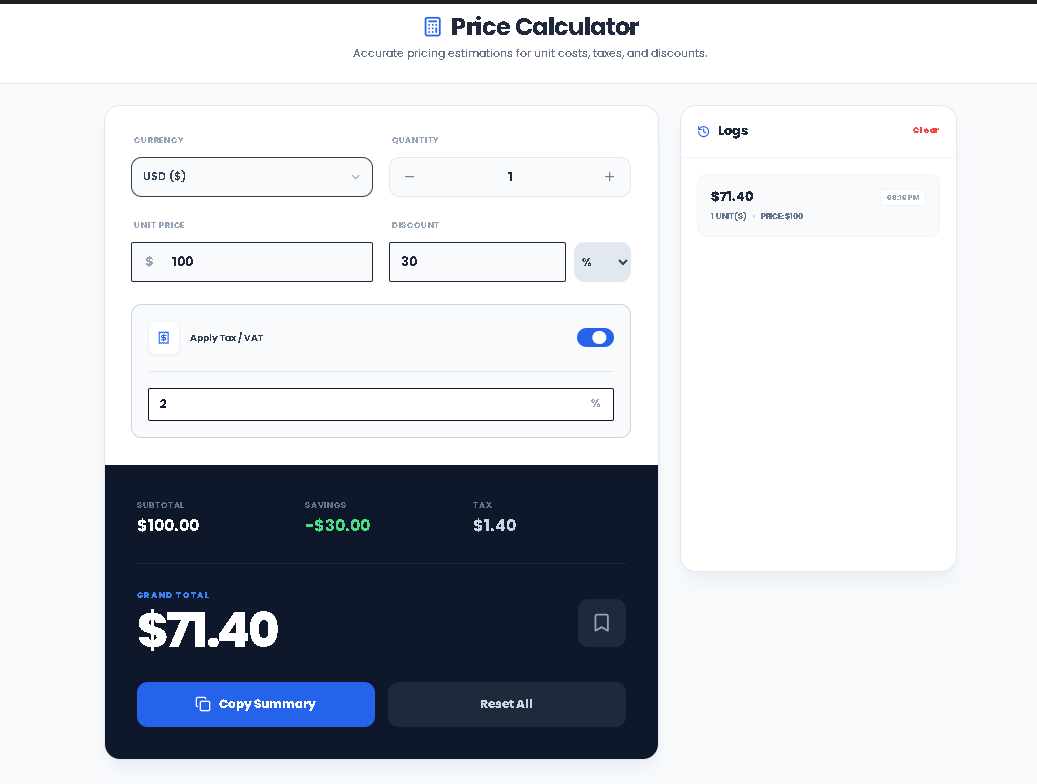
That’s where a dedicated Price Calculator, like Toolota‘s, really shines. It takes care of everything automatically, guaranteeing perfect math every single time. Plus, it gives you a neat, detailed breakdown—Subtotal, Savings, Tax, Grand Total—which helps build trust with clients and makes your own financial planning super clear. Basically, it turns what could be a tricky, multi-step calculation (whether in your head or on paper) into one quick, dependable, and easy-to-check process.
Using the Price Calculator is simple, but knowing each step will help you get the most out of it. Let’s go through the process exactly as it works in the tool.
Step 1: Set Your Currency & Quantity Start by picking your transaction currency from the dropdown menu—you’ll see options like USD ($), EUR (€), GBP (£), and more. This makes sure your final totals show up in the right currency format. Then, type in how many items you need. You can type the number directly or use the handy (+) and (-) buttons to adjust it bit by bit.
Step 2: Enter the Unit Price This is the key part of your calculation. In the “Unit Price” field, enter the base cost for one item or hour of service. The tool will use this number right away to show you live previews in the summary panel below.
Step 3: Apply a Discount (Percentage or Fixed) This is where the Price Calculator really shines. In the “Discount” field, enter the discount amount. Then, use the selector next to it to pick the type of discount. Choose “%” for a percentage off (like 10% off the subtotal) or “Fixed” for a specific amount to be taken off (like $25 off). The tool will instantly update the “Savings” section in the summary.
Step 4: Adding Tax or VAT need to include tax in your calculation? Just flip the “Apply Tax / VAT” switch. Doing this will show you a new spot to type in the exact tax rate percentage. The Price Calculator then figures out the tax amount based on the discounted subtotal (what the tax is applied to), making sure everything follows standard accounting rules.
Step 5: Check, Save, and Export Your Work As you enter information, you’ll see the big, bold “Grand Total” number update right away. Underneath it, you get some handy options:
Save to Logs: Hit the bookmark icon. This saves your whole calculation—everything you put in and the results—to your personal history log on the right side. Handy for comparing different quotes or looking back at estimates.
Copy Summary: Use this button to grab a neat text summary of all your inputs and the final total, which gets copied to your clipboard. Now you can easily paste it into emails, proposals, or any document.
Reset All: This clears everything out, so you can start a new calculation from scratch.
Live Updates as You Type: Watch the final total and all the breakdown sections update instantly with every single keystroke or option you select. There’s no need to hit a “calculate” button – everything stays up-to-date right before your eyes.
Two Ways to Discount: This tool handles both percentage-based deals and fixed-amount coupons, so you can easily manage pretty much any discount situation you come across.
Your Calculation History is Saved: Don’t worry about losing your work! Your saved calculations are stored right in your browser. Each entry in the log shows the total, the date, and the key details. Plus, just click on any past entry to instantly bring all its information back into the main calculator.
Works with Any Currency: Input and view costs in the currency you need for your specific transaction. This makes it super useful whether you’re a freelancer working internationally or a business dealing with global clients.
One-Click Quote Copy: Skip the tedious typing and potential mistakes! Get a neatly formatted text summary of your quote with just a single click.
Looks Great Everywhere: The Price Calculator is designed to work perfectly on desktop computers, tablets, and smartphones. This means you can estimate costs on the go, no matter what device you’re using.
Adding this Price Calculator to your daily tasks offers a lot more than just doing simple math.
Work Faster & Smarter: Tasks that used to take minutes to figure out manually now only take seconds. You can quickly explore different options, like instantly seeing the impact of ordering 50 units with a 15% discount.
Totally Accurate & Looks Professional: Say goodbye to costly calculation mistakes that can erode trust. Giving clients a neat, detailed breakdown of costs makes you look professional and builds their confidence.
Make Better Financial Choices: Instantly see how discounts and taxes affect the final price, so you can make smarter decisions about buying or setting your prices. Get a clear view of your actual costs and profit margins right away.
Stay Organized: The history log is like a simple record-keeping system, making it easy to keep track of past estimates and quotes without needing piles of separate documents.
Super Easy to Use: You don’t need any special training, downloads, or accounts to use it. Its clean, step-by-step design makes even complex financial calculations straightforward for anyone.
Absolutely. The Price Calculator by Toolota is a 100% free, client-side tool. There are no hidden fees, subscriptions, or required sign-ups. You can access and use all its features immediately in your web browser.
The tool applies tax correctly and professionally. When you enable tax and enter a rate (e.g., 10%), it calculates the tax amount based on the taxable base. The taxable base is your Subtotal (Unit Price x Quantity) minus any applied Discount. This ensures the tax is calculated on the net amount, not the gross, following standard accounting practice.
Your history is saved locally in your own web browser’s storage (localStorage). This means the data never leaves your computer and is not sent to any server. It is private to you on that specific device and browser. Clearing your browser cache may delete this history.
Toolota is your all-in-one online tools platform. Fast, simple, and free utilities designed to make everyday digital tasks easier and smarter.