JPG to PDF – Easy & Fast Image to PDF Maker | Toolota
this day and age, turning JPG files into PDFs is something we all need to do quite often. Whether you’re putting together a portfolio, saving scanned documents, or getting a professional report ready, combining multiple pictures into one neat PDF is really helpful. But, a lot of the online tools out there aren’t great – they might not protect your privacy, they have limited features, or they’re just full of ads. That’s where Toolota comes in, offering a strong, private, and professional way to handle this. Our tool, which works right in your web browser, lets you turn JPGs into PDFs right on your own device.
What is the JPG to PDF with Toolota?
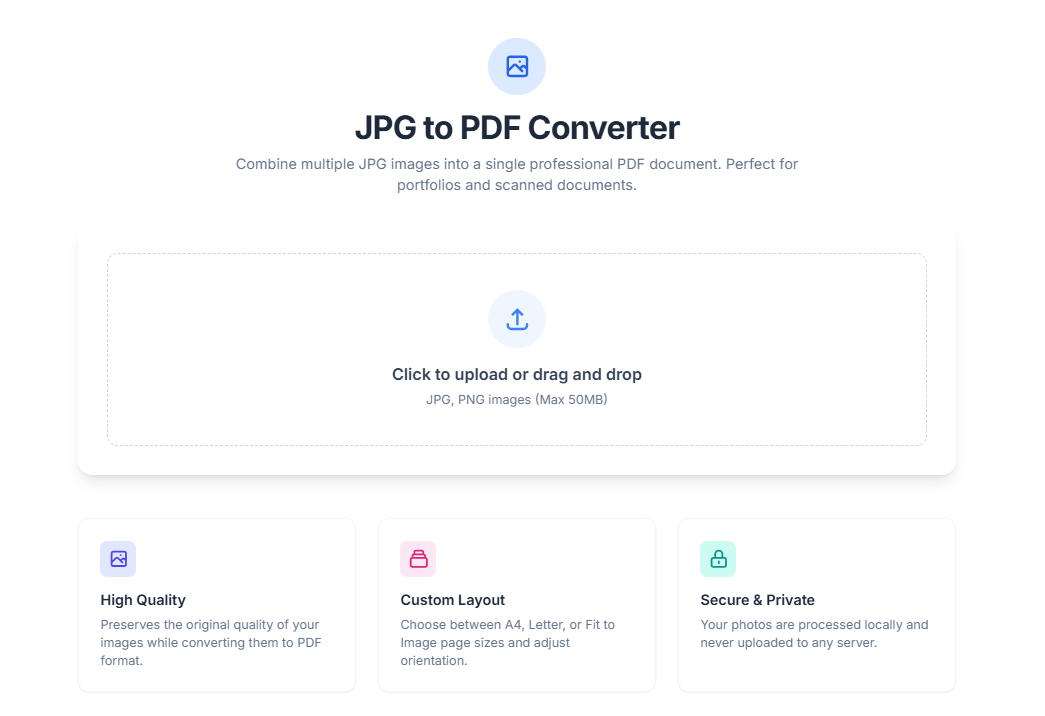
The Toolota Convert JPG to PDF tool is a smart web app that works right on your computer, helping you turn single or multiple JPG and PNG photos into a single PDF file. Since it’s client-based, all the work happens directly in your browser, not on any external server. This means your images are never uploaded, so things like contracts, personal IDs, or private business info stay completely private and secure.
Why Choose Toolota for Your JPG-to-PDF Conversion?
Choosing Toolota to convert your JPGs to PDF means picking a tool that really focuses on what you need: great quality, control over your files, and keeping your information private.
Strict Privacy & Security: Your data never leaves your computer. We use advanced JavaScript tools like jsPDF to do all the converting right in your browser. When you’re done and close the page, your files are gone – no trace left behind.
High-Quality Results: We’ve built the tool to keep your images looking exactly as they should, with no loss in resolution or clarity. You won’t get any compression that makes things look bad or any annoying watermarks in your final PDF. This makes sure your documents always look professional.
Easy & Flexible Process: Whether it’s the simple drag-and-drop setup or the detailed choices for page layout (Portrait or Landscape) and size (A4, Letter, or fitting the image), everything is made to help you work smoothly. The live list of files and the ability to remove items with one click make handling your project a breeze.
How to JPG to PDF with Toolota: A Detailed Walkthrough
This is the easiest way to get started! Think of the main drop area as a very active space, not just something you look at. Just grab your image files from your computer folders and drop them right onto this spot. The tool instantly recognizes them, checks to make sure they’re images, and adds them to your list ready to go. It’s a super quick way to gather everything without dealing with any complicated windows.
Way 1: The Drag-and-Drop Merge
This is the easiest way to get started! Think of the main drop area as a very active space, not just something you look at. Just grab your image files from your computer folders and drop them right onto this spot. The tool instantly recognizes them, checks to make sure they’re images, and adds them to your list ready to go. It’s a super quick way to gather everything without dealing with any complicated windows.
Way 2: The Classic File Browser Upload
If you’re more comfortable using the traditional method, just click anywhere in that drop zone. This will open up your computer’s standard file finder window. From there, you can browse and pick multiple JPG or PNG files from wherever they are stored. Once you’ve made your selections, the tool processes them and adds them to the same list as the drag-and-drop method. Offering both options means everyone can work in the way they prefer.
Way 3: Sequential Ordering & Management
When you’re turning JPGs into a PDF, the order you put them in is really important. The tool helps you with this by automatically showing you a list of your files right under where you drop them. Each file in this list (#file-list div) shows its name, how big it is, and has a little button to remove it. This list is exactly the order your pictures will show up in the final PDF document.
You can easily change this order. If you want a picture gone, just use the remove button next to it. Behind the scenes, this calls a function (`removeFile(index)`) that takes that file out of the list and updates the list you see. It’s a simple process: upload your pictures, check the order, and keep adjusting it until it’s just how you want it.
Way 4: Customizing Page Layout & Format
This is where you get to be a bit more creative and professional with how your PDF looks. There are a couple of key settings you can play with in the options area:
Page Orientation (#orientation select): You can choose between “portrait” (taller than it is wide) and “landscape” (wider than it is tall). This setting tells the PDF maker (‘jsPDF’) how to set up the page, basically flipping it one way or the other.
Page Size (#page-size select): Here, you have a few choices for how big the pages should be:
A4/Letter: These are the standard paper sizes most people use.
Fit to Image: This is a neat option if you want the images to look their best. When you pick this, the tool looks at each picture and figures out its shape (aspect ratio). It then automatically resizes the picture so it fits nicely on the page (like an A4 page, by default) while still leaving some space around the edges (margins). The picture gets centered too, by calculating where it needs to go on the page.
Way 5: The Client-Side Conversion Engine
When you hit the “Create PDF” button, a smart, step-by-step process kicks off in the background:
- Setting Up the PDF:First, it creates a fresh, blank PDF document using your chosen settings.
- Processing Your Images: The script then goes through each image file you selected. For every file, it reads the image data and converts it into a format the PDF generator can use.
- Figuring Out the Image Size: The system checks the size of each image. It then calculates how big to make the image on the PDF page, ensuring it fits well and looks sharp without spilling over the edges.
- Adding Pages and Images: The first image gets placed on the first page. For every other image, the script adds a new page and puts the next image on it.
- Keeping You Updated: As the PDF is being built, the progress bar fills up, and the text next to it updates so you can see how far along the process is.
- Ready to Download: Once everything is done, clicking the save button tells your browser to automatically download the finished PDF right to your computer.
4. The Top 5 Benefits of Using Convert JPG to PDF with Toolota
Experience lightning-fast, local processing when converting JPGs to PDFs. Because no data travels over the internet, the speed is entirely dependent on your device’s capabilities, so you won’t have to wait for uploads or deal with server queues.
Rest assured of pixel-perfect accuracy. This tool uses the original image data, ensuring no loss of clarity or color integrity during the PDF creation process—perfect for professional and archival quality.
It’s also designed with content creators in mind. This tool helps you create structured, image-based PDFs that are optimized for document SEO. When linked and described properly on web pages, well-organized PDFs are more likely to be favored by search engines.
5. Important Conditions & Best Practices
The quality of your final PDF will depend on the resolution and clarity of the JPG files you upload. Always use the best source images you have to get the best results.
Take a moment to review the final document after conversion. Even though the process is usually accurate, it’s a good idea to quickly check that all pages are in the right order and that the images look as expected.
Frequently Asked Questions (FAQ) About the PDF to JPG Converter